Open the page, press Command–P on Mac, select Save as PDF in Destination, and click Save. These instructions describe the desktop Chrome print workflow.
1. Check Destination and the print preview
Open the content, press Command–P and check Destination. Choose Save as PDF if a printer is selected. The actual English practice page produces two pages in Chrome’s print preview. Inspect the later page as well as the first one for missing sections and awkward page breaks.
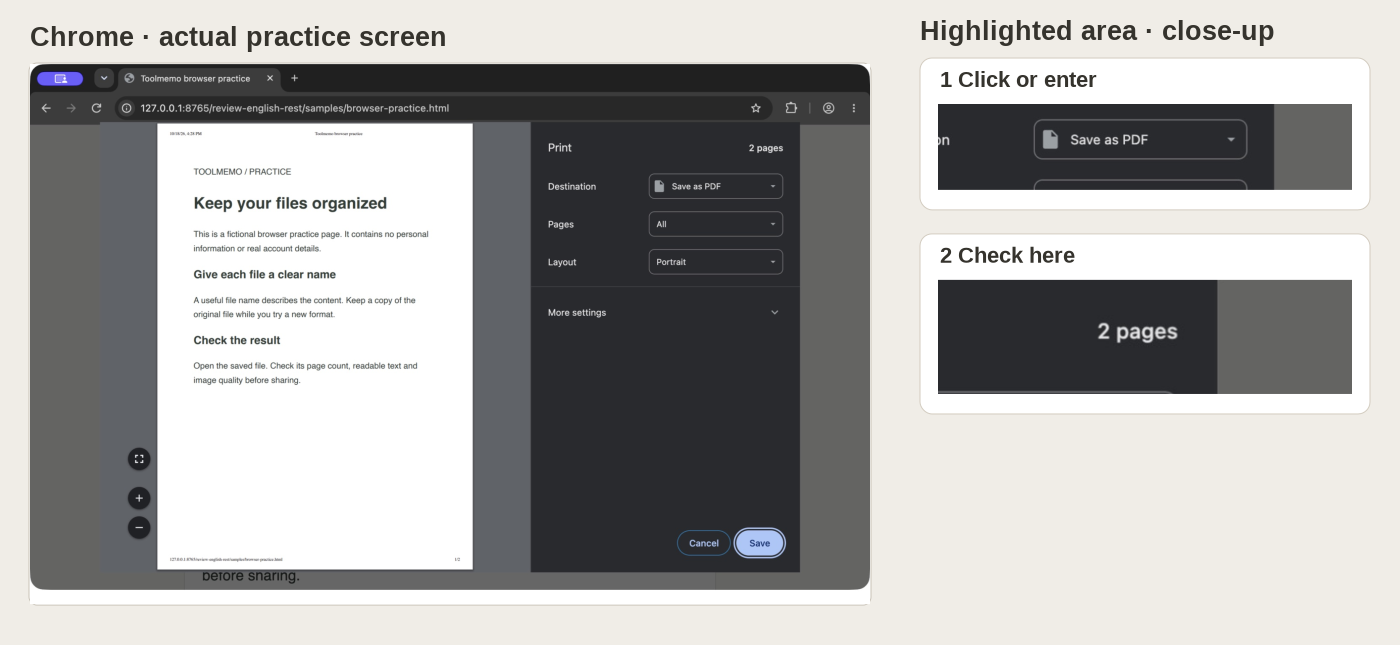
Chrome’s actual English print preview shows Save as PDF and two pages. This is the local fictional practice page.
- 1Action Choose Save as PDF in Destination.
- 2Check Confirm the two-page count before saving.
2. Choose a file name and destination folder
Click Save, choose a recognizable name and check the folder. The English run saved webpage-english.pdf in the practice results folder. Use another name when you need to keep an existing file. Print headers and footers can include dates and addresses; check whether those details belong in a shared document.
3. Reopen the PDF and check the later pages
Open the saved PDF. The English-run file has two pages and is 41,871 bytes. Its reopened second page shows Check before sharing and the end of the practice text. The exact size depends on the page and print options; it is not a target size for other websites.
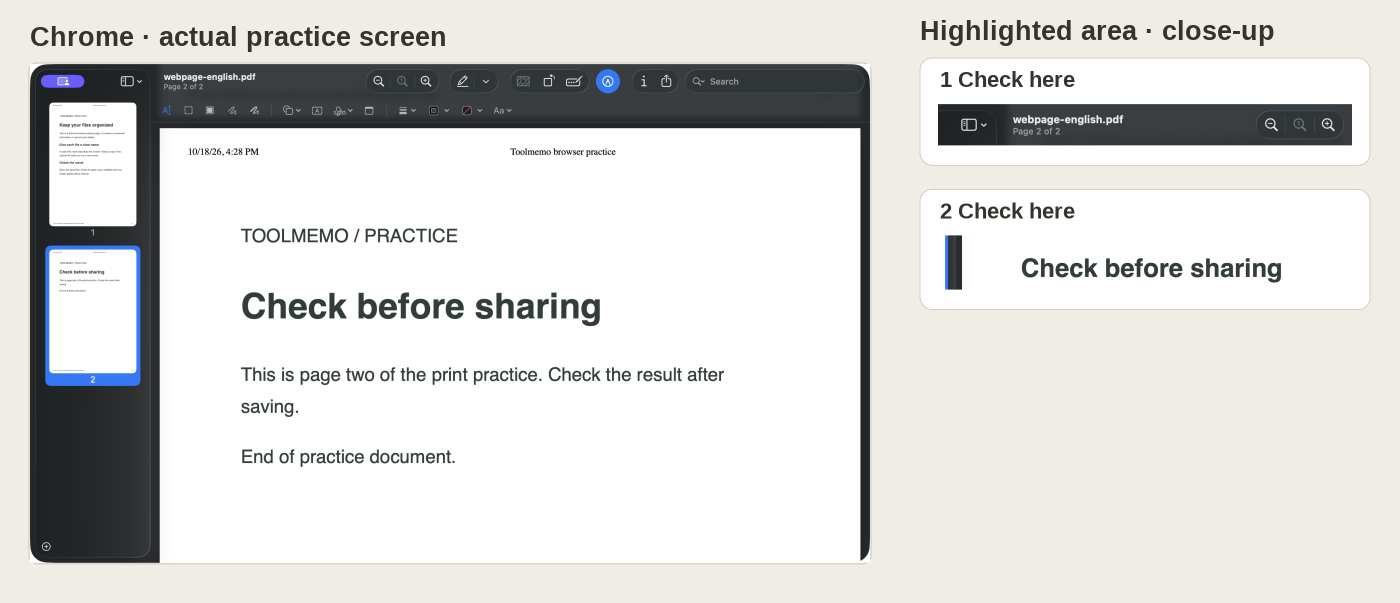
The saved webpage-english.pdf is reopened on Page 2 of 2 in English Preview. The heading and ending of the second page are present.
- 1Check Check the saved name and Page 2 of 2.
- 2Check Read Check before sharing on the second page.
Before you share the result
- A website may provide a separate print layout. Expand any content you need before printing, then confirm the result.
- A saved PDF preserves a document view, not the site’s sign-in session or working interactive controls. If the site offers an original downloadable PDF, that file can differ from a printed copy.
English practice screens were captured on macOS 26.5.2 on 18 October 2026. All documents and images shown are tutorial samples. Results apply to these examples; interface labels can differ by version.