Open a photo copy in Preview. Use Rotate Left for a 90-degree turn, or Tools → Flip Horizontal for a mirror image.
1. Make a separate rotation copy
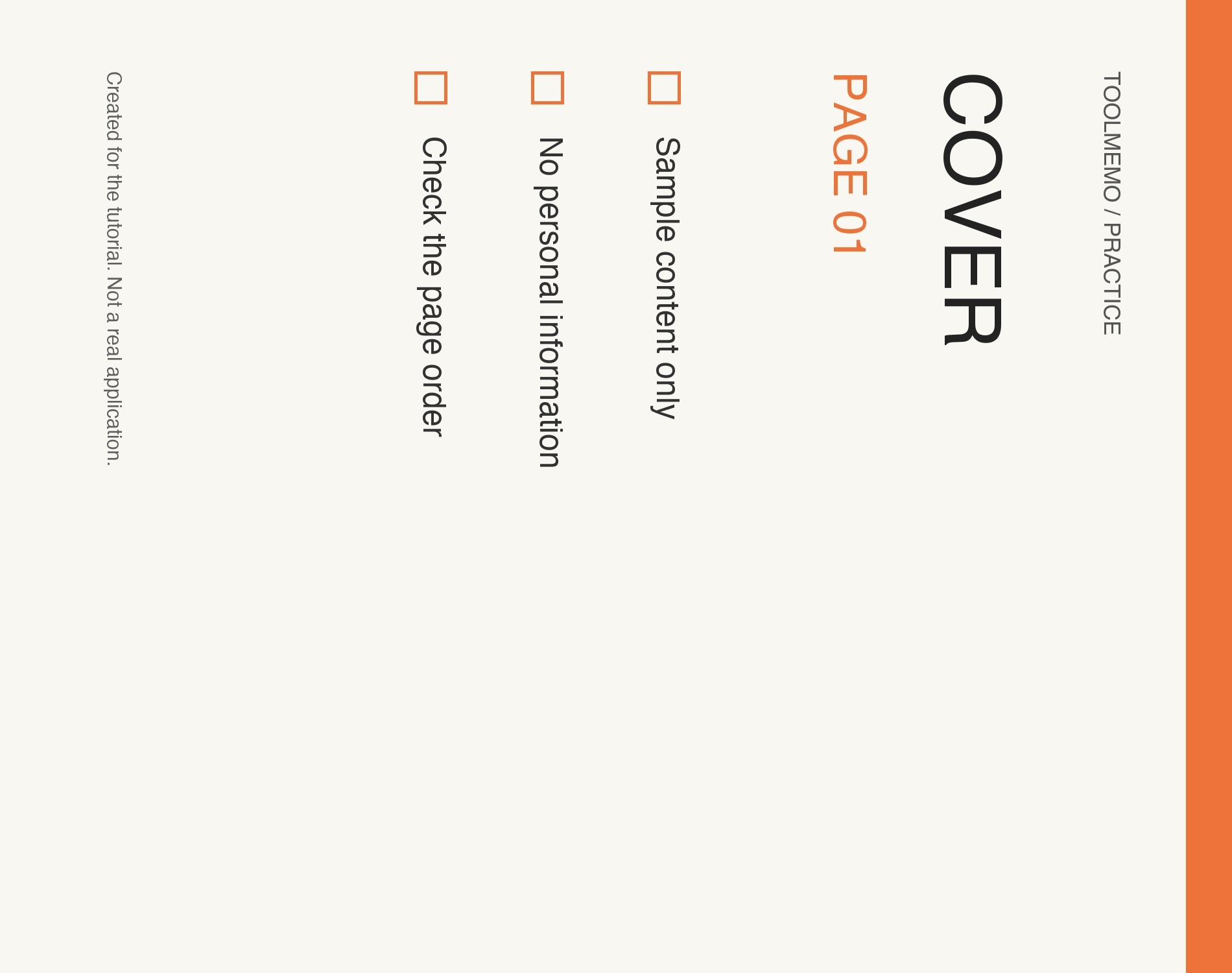
Keep the source image intact because Preview can save edits automatically. The English example starts with a 1500 × 1900 practice image. Choose Tools → Rotate Right for the clockwise turn shown here. The saved rotation copy is 1900 × 1500 pixels. Rotate Left turns in the opposite direction.

The source is a 1500 × 1900 practice image. Use an editing copy before rotating it.
- 1Check Check the original direction of the heading.

Tools → Rotate Right turns the picture clockwise. This saved copy is 1900 × 1500.
- 1Check Check the clockwise heading.
2. Start another copy for a horizontal flip
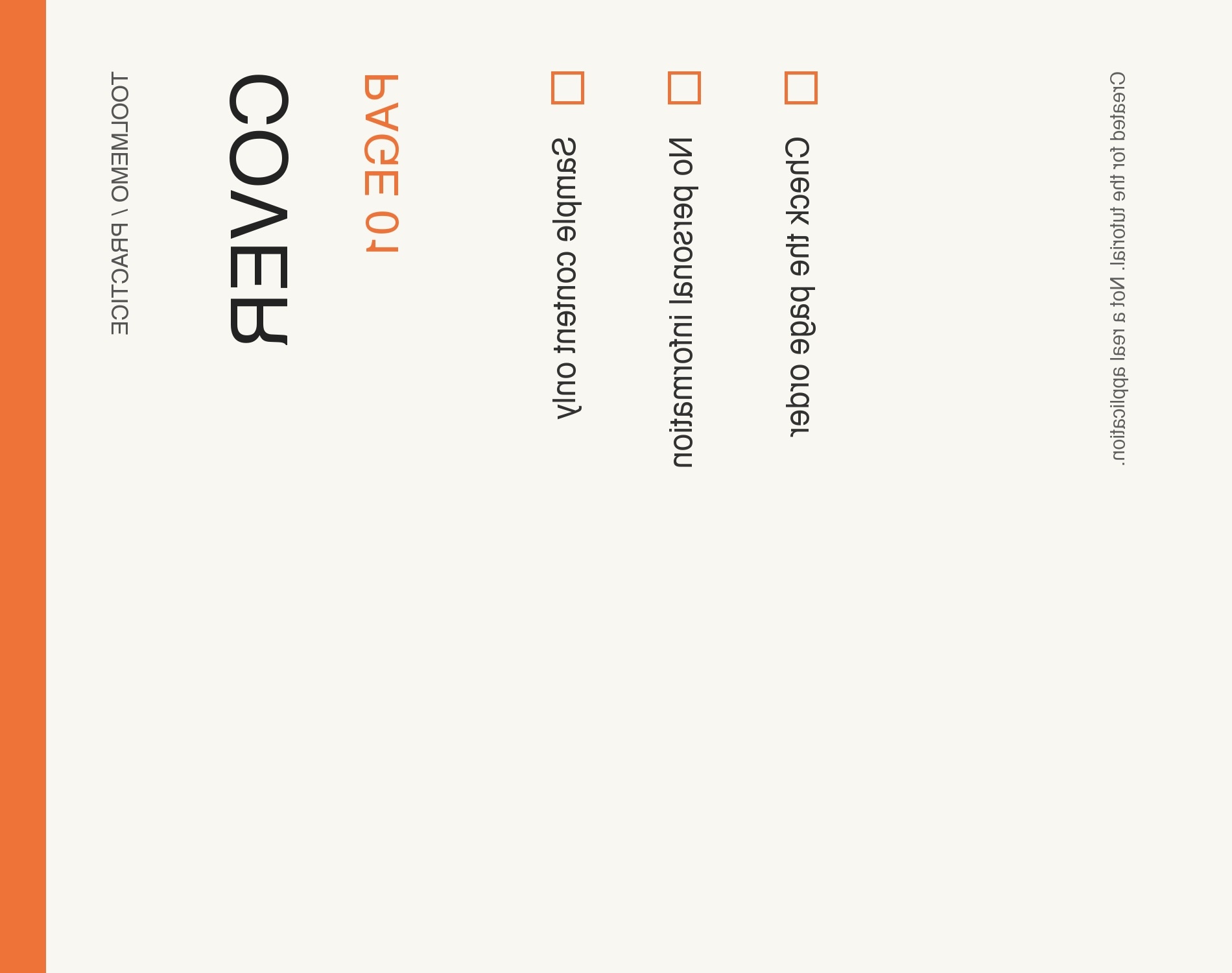
For this English example, continue from the rotated picture and choose Tools → Flip Horizontal, then save another copy. To mirror a picture without rotating it first, start with an unrotated copy and use the same Flip Horizontal command. Flip Vertical is a different command. A horizontal flip mirrors any text or logos in the picture as well as the subject.

Tools → Flip Horizontal mirrors the already rotated picture in this English example. Text is mirrored too; dimensions remain 1900 × 1500.
- 1Check Compare the mirrored heading with the rotation copy.
3. Reopen the results and compare them with the source
Check the saved copies rather than relying only on the editing window. The English rotation copy is 1900 × 1500 pixels and 135,353 bytes. The mirrored copy is also 1900 × 1500 and is 133,071 bytes. The flip changes left and right, without swapping those dimensions again. Keep the 1500 × 1900 original for comparison.
Before you share the result
- Use Command–Z if the latest change is wrong. If several edits have become confusing, start over from the preserved source.
- Rotation, a mirror flip and cropping solve different problems. Check text orientation and the image edges before sharing the result.
English practice screens were captured on macOS 26.5.2 on 18 October 2026. All documents and images shown are tutorial samples. Results apply to these examples; interface labels can differ by version.