With Finder selected, choose Finder → Settings → Advanced and turn on Show all filename extensions.
1. Check which names are currently shortened
The practice folder contains cover.jpg, format-example.heic and extension-sample.txt. To demonstrate a shortened name, Hide extension was enabled only for the cover practice file in Get Info. With the global display option off, that file appears as cover. Other files may already show their extensions.
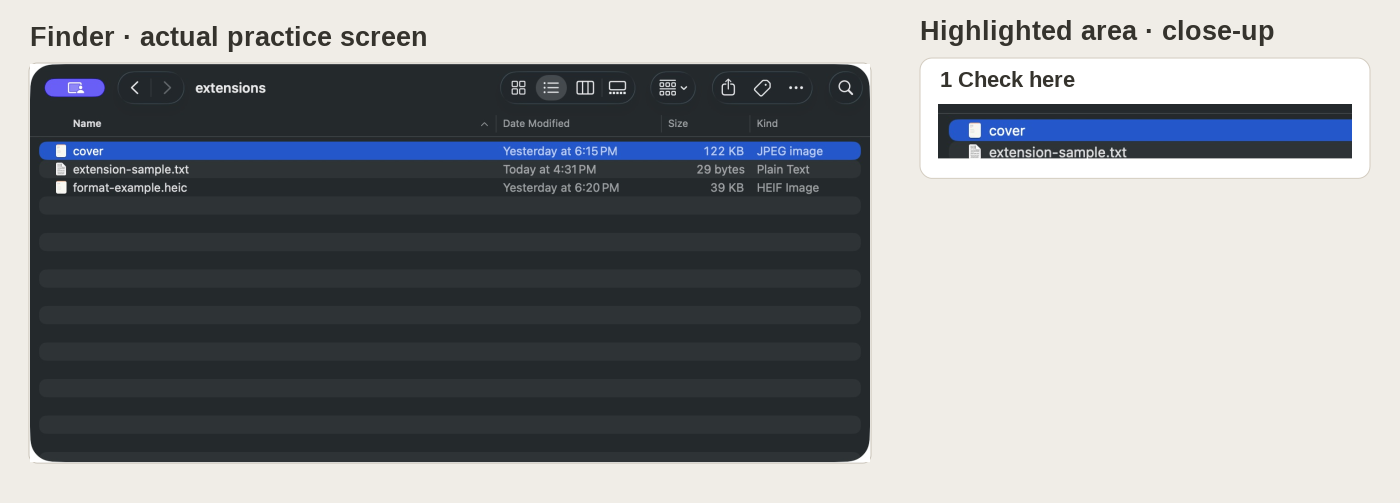
Only the practice cover file has Hide extension enabled. It appears as cover before the global display option is turned on.
- 1Check Check the shortened cover name.
2. Turn on Show all filename extensions
Click a Finder window so Finder appears in the menu bar. Open Finder → Settings, choose Advanced, and select Show all filename extensions. Leave the separate warning about changing an extension enabled; you do not need to turn that warning off to display names.
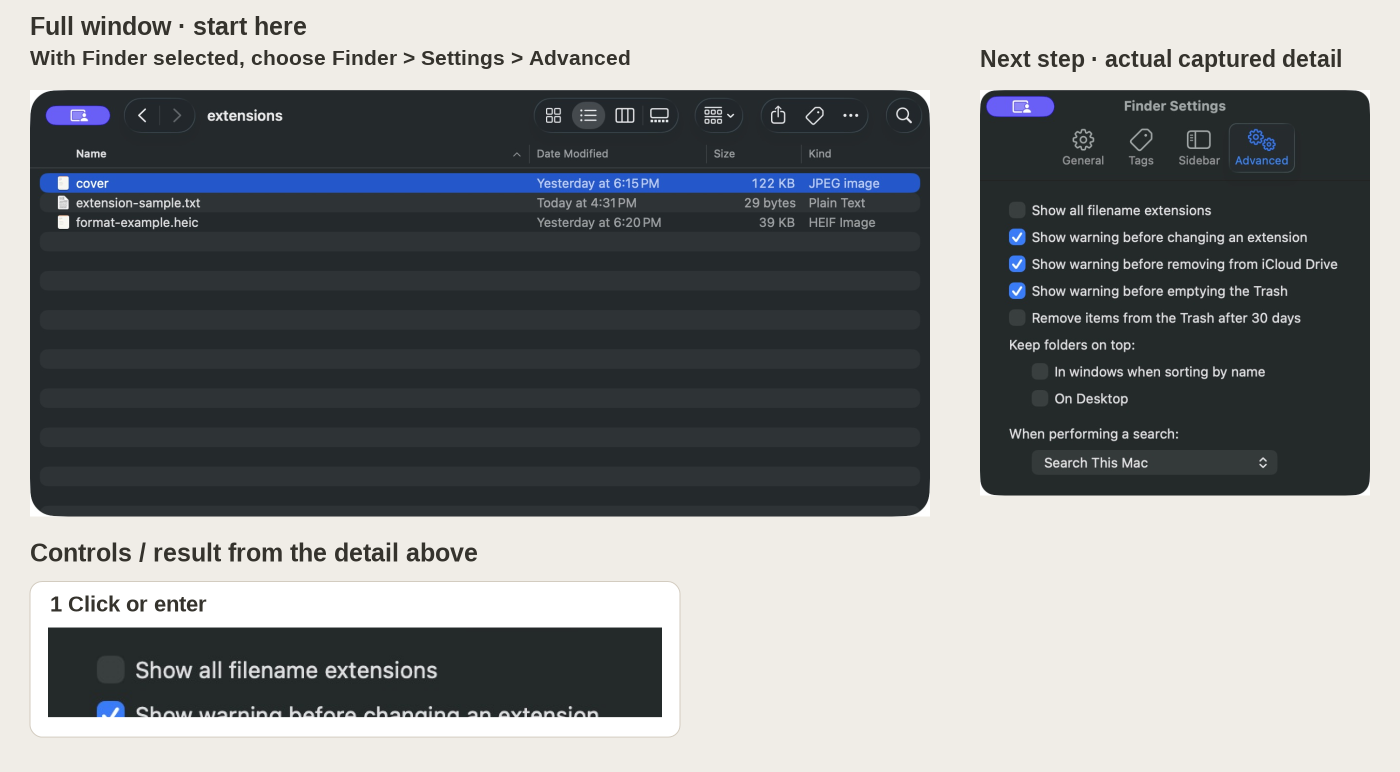
The actual before-state in Finder Settings → Advanced. Select Show all filename extensions; leave the separate warning checkbox enabled. The large view locates the app and workflow. The separate image is a real cropped view from the specified step; it is not pasted into the app window.
- 1Action Select Show all filename extensions.
3. Return to the folder and read the file names
Close Settings and inspect the same folder. With Show all filename extensions on, the shortened cover name appears as cover.jpg. This displays the actual ending; it does not convert the image. The global display setting was returned to its original off state after the screenshots.
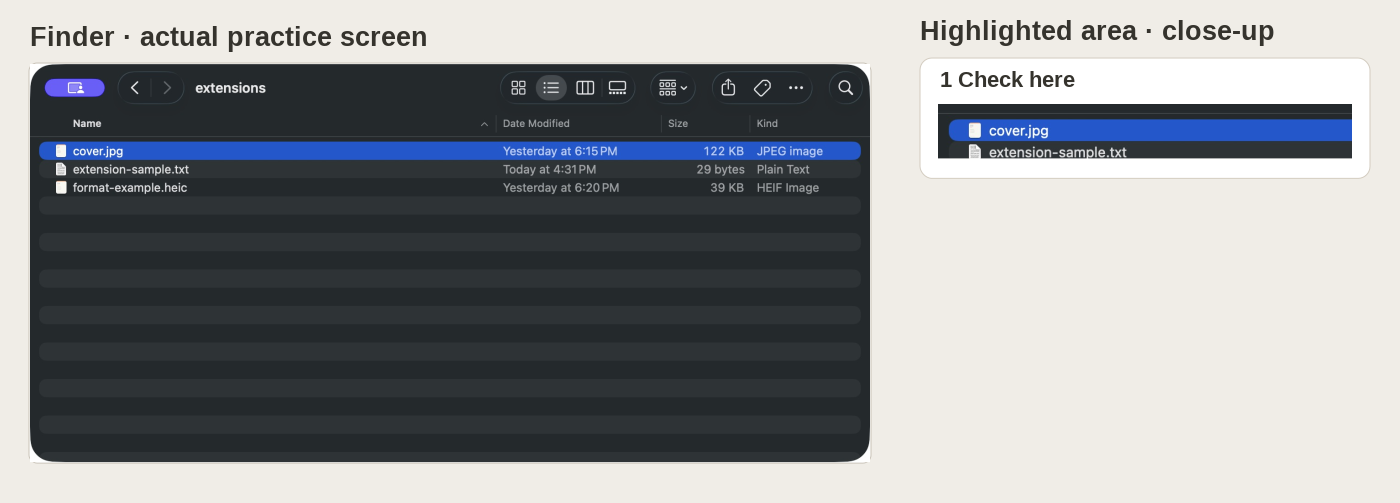
After enabling the option, the same file appears as cover.jpg. The global option was restored to its original off state after the test.
- 1Check Read the visible .jpg ending.
Before you share the result
- Changing an extension’s letters is not format conversion. Export an actual JPEG when a site requires JPG.
- For a single file, Apple also documents Get Info → Name & Extension → Hide extension. The original recorded workflow changes the Finder-wide setting.
English practice screens were captured on macOS 26.5.2 on 18 October 2026. All documents and images shown are tutorial samples. Results apply to these examples; interface labels can differ by version.