Open the folder in Finder and press Command–Shift–period (.). Press the same keys again to hide those items.
1. Open the folder you want to inspect
The English practice folder contains visible-note.txt and a practice file named .hidden-note.txt. Before changing the view, only the ordinary file is visible. Use a folder you understand; displaying hidden items does not mean they need to be removed.
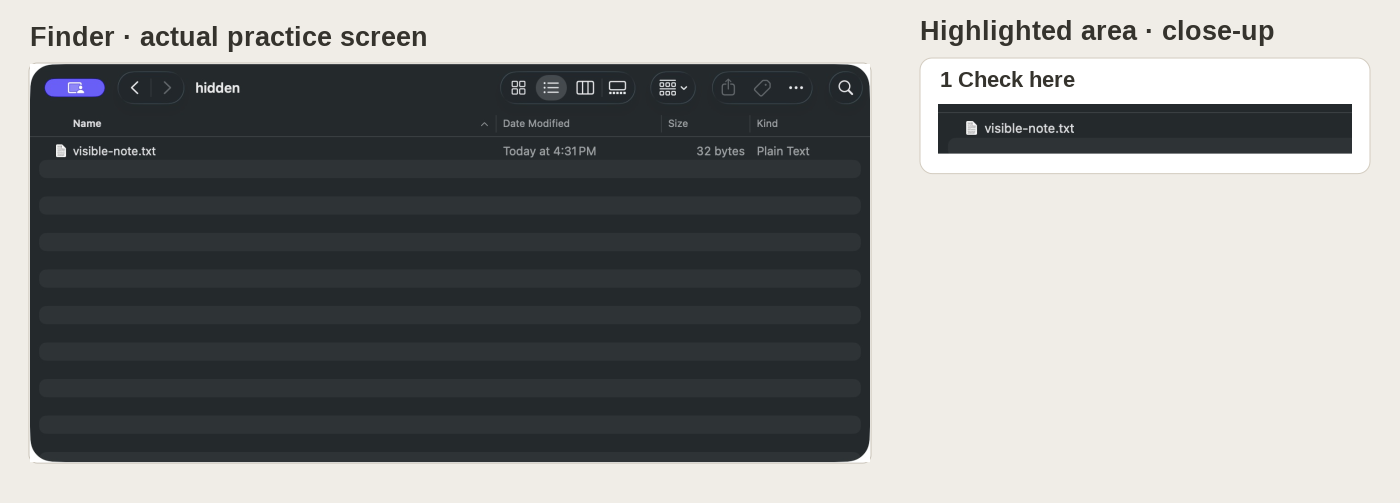
The practice folder initially shows only visible-note.txt.
- 1Check Check the ordinary visible file.
2. Press Command–Shift–period
Make sure the Finder window is selected, then press Command, Shift and the period key together. In the English run, .hidden-note.txt appeared with a dimmed icon and the folder showed two items. The shortcut revealed an existing file; it did not create it or change its access permissions.
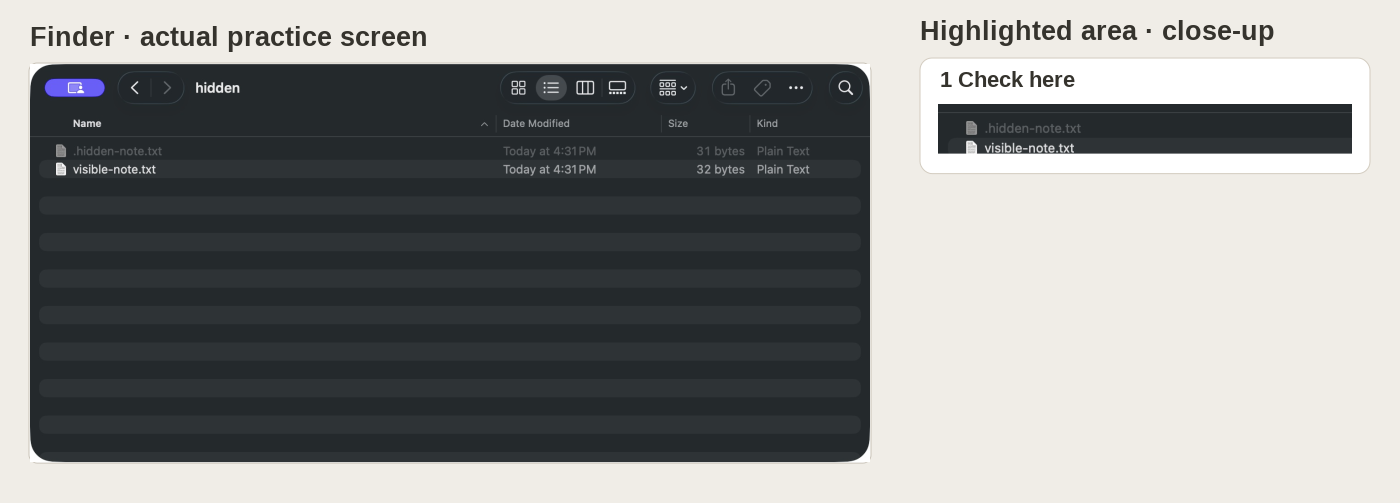
Command-Shift-period reveals the existing .hidden-note.txt with a dimmed icon.
- 1Check Check the newly visible dot-prefixed file.
3. Press the shortcut again when finished
Repeat Command–Shift–period. The dot-prefixed practice file disappeared from view while visible-note.txt remained. The hidden file was still present in the folder. Treat the shortcut as a view change rather than a delete operation.
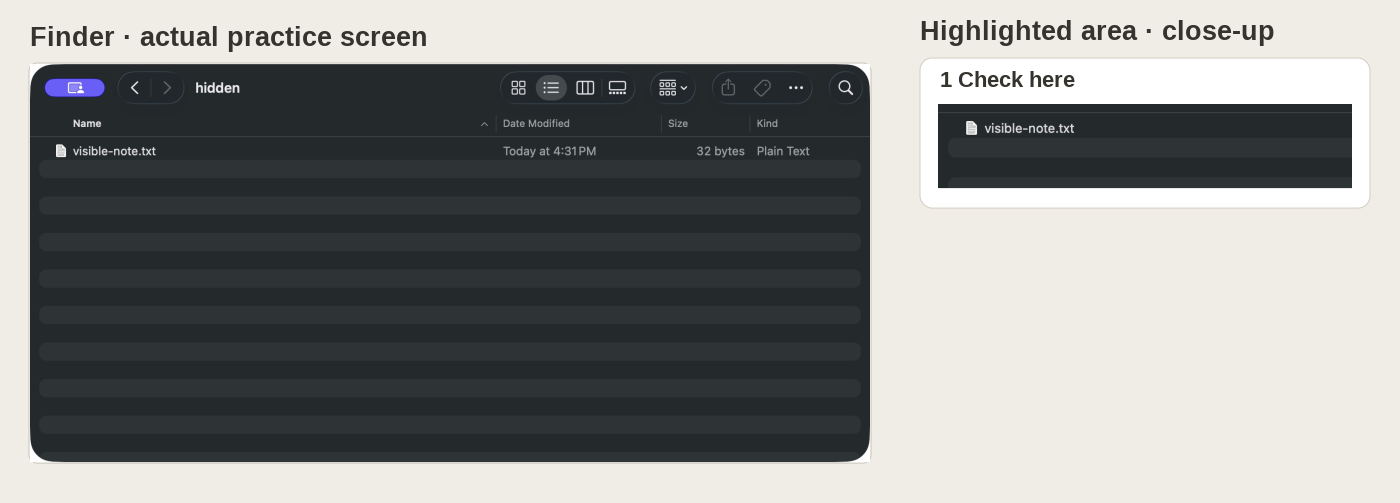
The same shortcut hides .hidden-note.txt again. It still exists on disk.
- 1Check Confirm that only the ordinary file remains visible.
Before you share the result
- The dot at the beginning of this file’s name is different from the .txt extension at the end. Showing extensions and showing hidden files are separate settings.
- If nothing appears, check the selected app and folder. The shortcut cannot reveal a file that is not actually in that location. Leave unfamiliar system items unchanged.
English practice screens were captured on macOS 26.5.2 on 18 October 2026. All documents and images shown are tutorial samples. Results apply to these examples; interface labels can differ by version.