Open Chrome’s three-dot menu → Downloads, search for the file, and choose Show in Finder to locate it. Match any keyboard shortcut to the one shown in your own Chrome menu.
1. Confirm that the download finished
The English run downloads toolmemo-english-download.pdf from a local practice link. The document is a fictional one-page PDF without personal information. Wait for the download to finish before searching for it. Use only files from a source you trust.
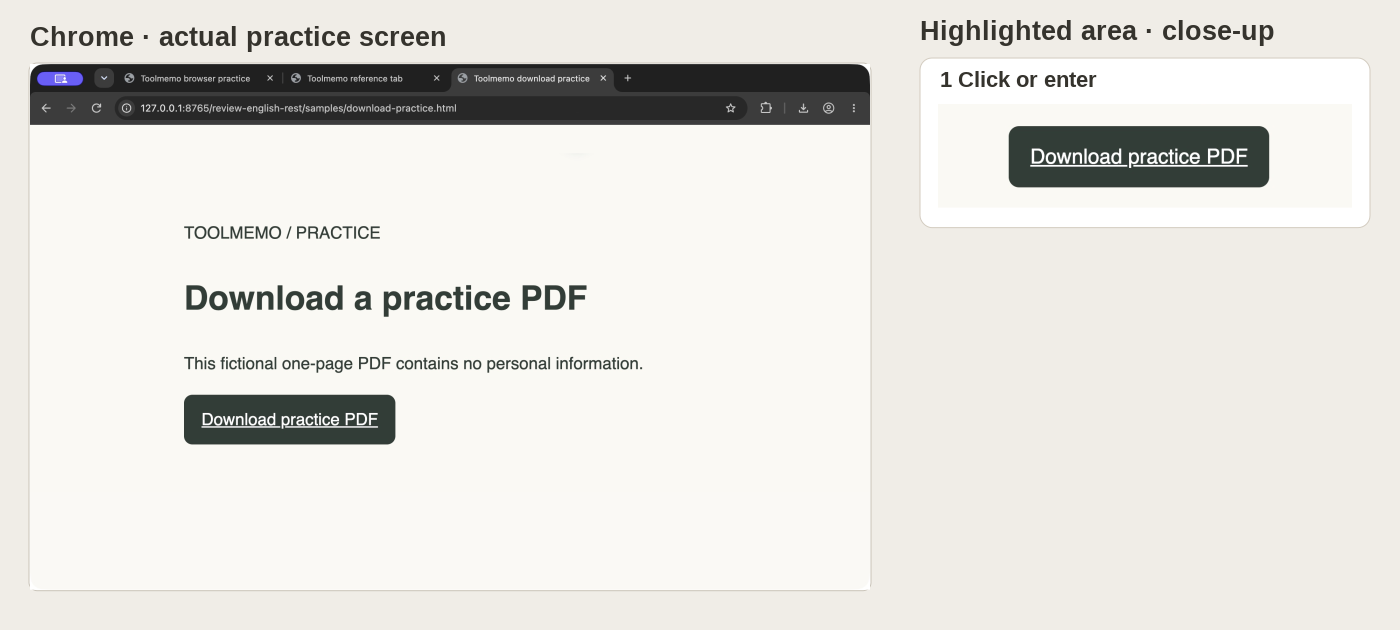
The local fictional one-page PDF is downloaded with this practice link.
- 1Action Download the practice PDF.
2. Find the entry in Downloads
Open Downloads and search for toolmemo-english-download. The actual filtered English list shows the PDF and Show in Finder beside it. Clicking that button selects the file in Downloads. If you use a different download location, Finder can open that folder instead.

The real English Download History is filtered to toolmemo-english-download. Show in Finder is the folder-shaped action in the result row.
- 1Action Search for part of the file name.
- 2Action Choose Show in Finder beside the matching file.
3. Open the file from its folder
Open the selected file and check the document. The English-run download is one page and 1,866 bytes, matching the local source. The accompanying Finder view hides unrelated files for privacy. A download-history entry alone does not prove that a file still exists at its old location.
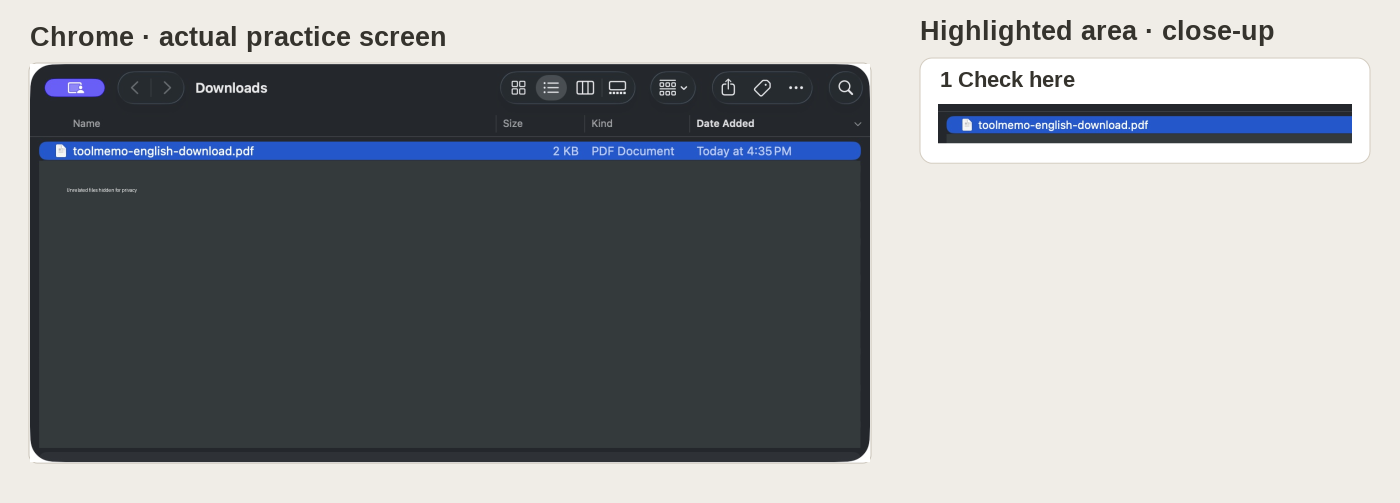
Show in Finder selects the actual PDF in Downloads. Unrelated file entries are covered for privacy; the selected practice entry is unchanged.
- 1Check Check the selected practice PDF and its folder title.
Before you share the result
- Moving or deleting a downloaded file later can make an old history entry stop opening it. Search Finder for its name before downloading again.
- Removing a download-history entry and deleting the actual file are separate actions. Neither deletion was part of the original test.
The English-run one-page download and Show in Finder were checked on 18 October 2026. The menu route is used because the displayed local Mac shortcut differs from Google’s current shortcut page. No change to the Korean original is inferred from that difference.