Open the three-dot menu → Extensions → Manage Extensions. Use the extension’s switch to disable it or Remove to open its confirmation prompt.
1. Identify the right extension
Open Manage Extensions and read the name and description. Search by name if the list is long. The English example is filtered to Google Docs Offline solely to demonstrate these controls; this is not a claim that it is faulty. Leave Developer mode off.
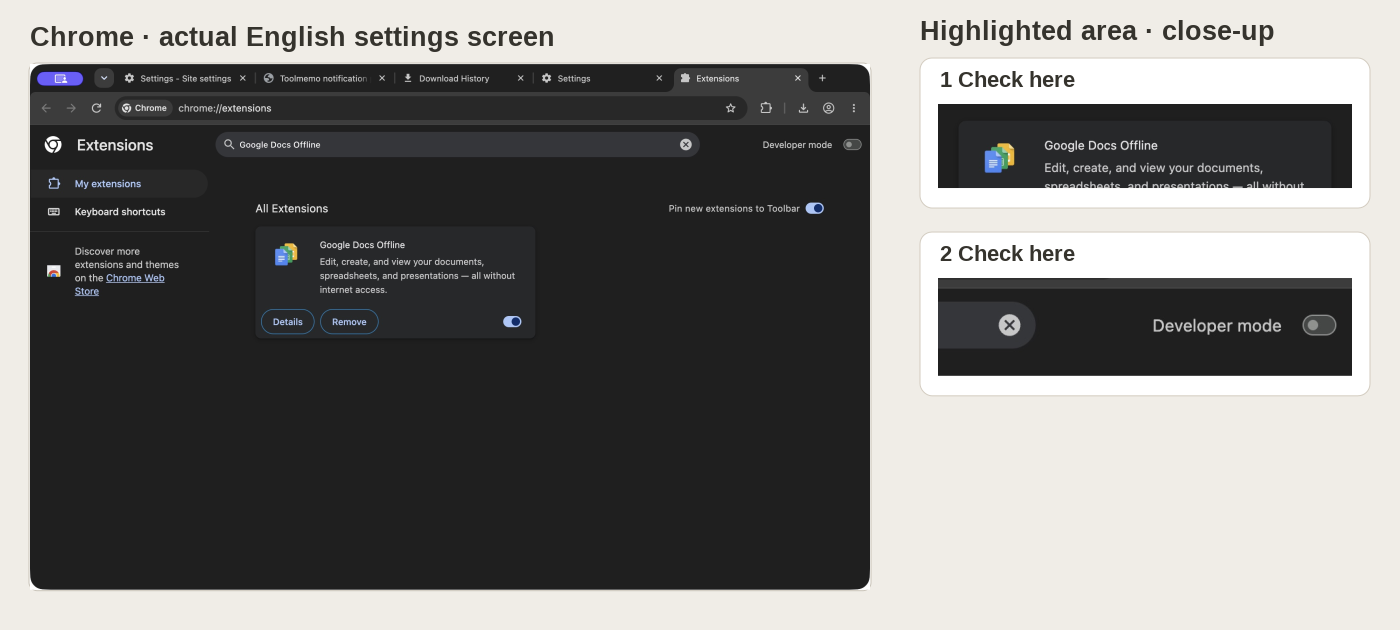
Actual English Extensions page, filtered to Google Docs Offline. Developer mode remains off and the example is initially enabled.
- 1Check Identify the extension by its name.
- 2Check Developer mode is unrelated and stays off.
2. Use the switch for a temporary test
Turn the extension’s switch off for a temporary test. The actual English example changes to a gray off switch while remaining in the list. Reload an affected page if you need to compare behavior, but disabling an extension does not by itself show that it caused an error. The example was restored on after inspection.
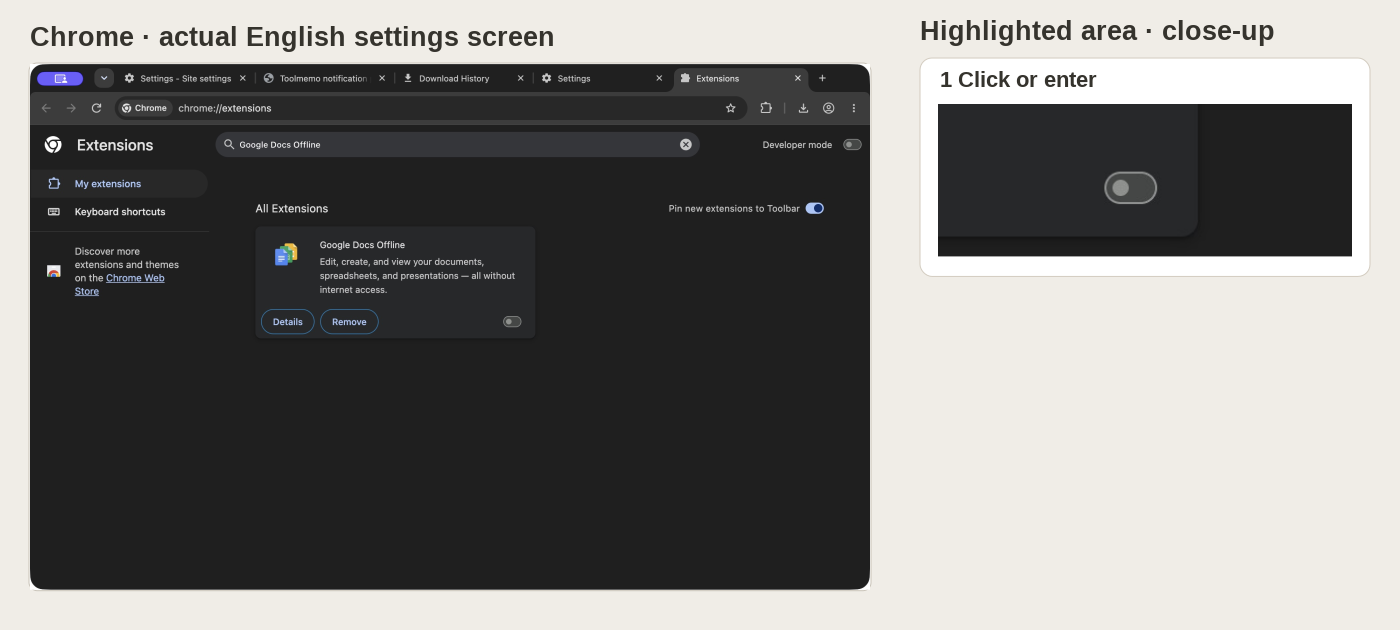
The same extension’s switch is actually off and its card remains in the list. It was re-enabled after the practice; no website-error diagnosis is implied.
- 1Action The gray off switch temporarily disables the extension.
3. Check the removal prompt before confirming
Choose Remove and read the extension’s name in the confirmation. Cancel keeps it; the final Remove button uninstalls it and may discard its local settings or data. The English confirmation was canceled, with the example extension preserved and enabled. The separate close-up was captured after re-enabling it.
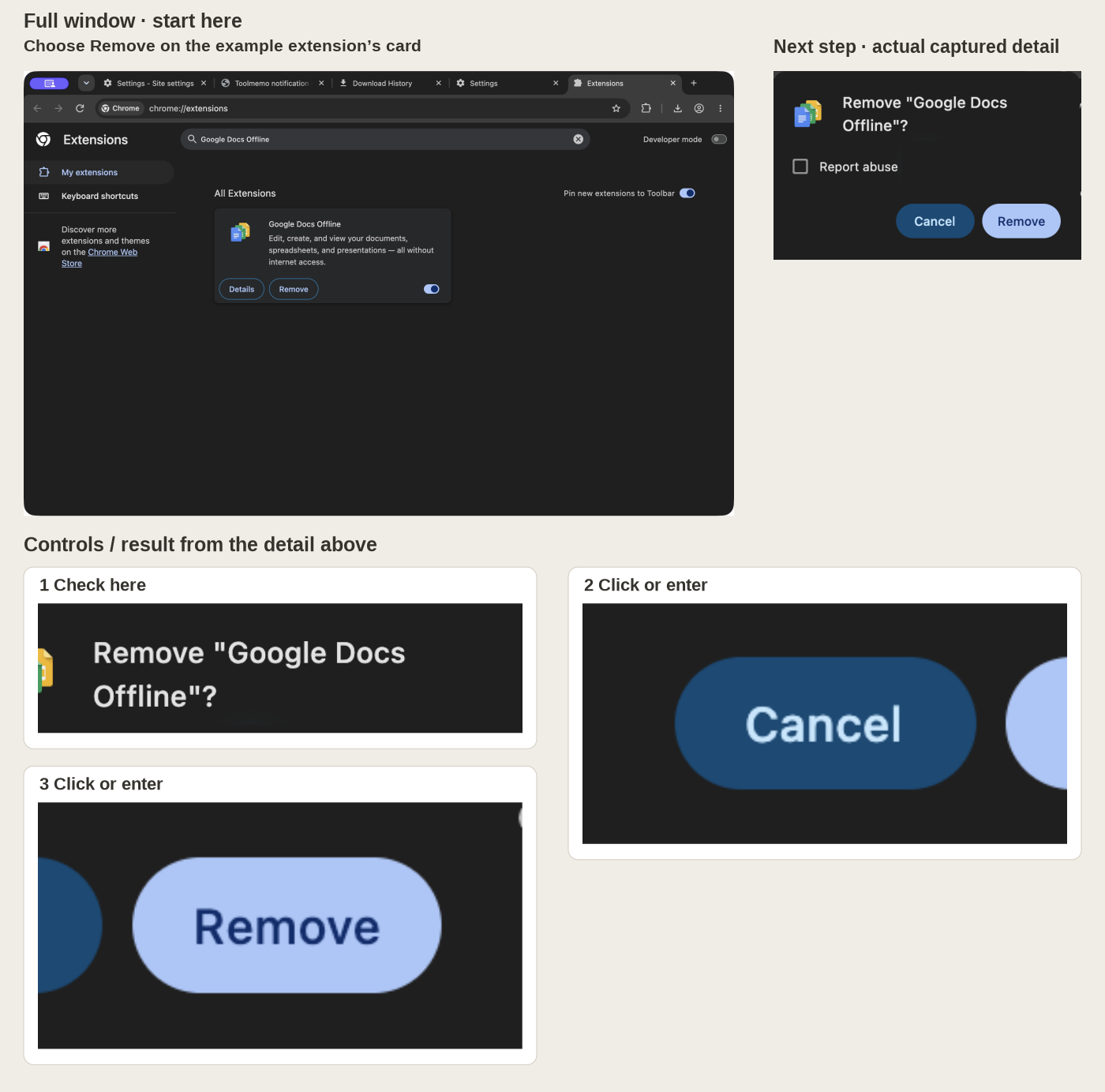
Actual high-resolution macOS capture of the Remove confirmation, shown in a later state after the example was re-enabled. Cancel was chosen; the extension was not uninstalled. The cursor was removed only from an empty margin. The large view locates the app and workflow. The separate image is a real cropped view from the specified step; it is not pasted into the app window.
- 1Check Read the exact extension name.
- 2Action Cancel keeps the extension.
- 3Action Remove is the final uninstall action.
Before you share the result
- Temporarily disabling an extension and permanently removing it are different actions. Keep any necessary data before uninstalling.
- Do not remove all extensions as a substitute for identifying which setting or component is involved in a problem.
English Google Docs Offline controls were inspected on 18 October 2026. The switch was actually turned off and restored on. The removal prompt was canceled and Developer mode remained off; no uninstall or new extension installation occurred.