Open Chrome Settings → Privacy and security → Delete browsing data. Choose a time range and select only Cached images and files before confirming.
1. Open the browsing-data controls
Open Chrome’s three-dot menu → Settings → Privacy and security → Delete browsing data. In the captured version, the dialog uses time-range buttons and a category list. Older versions may show Basic and Advanced tabs instead, so match the labels you actually see.
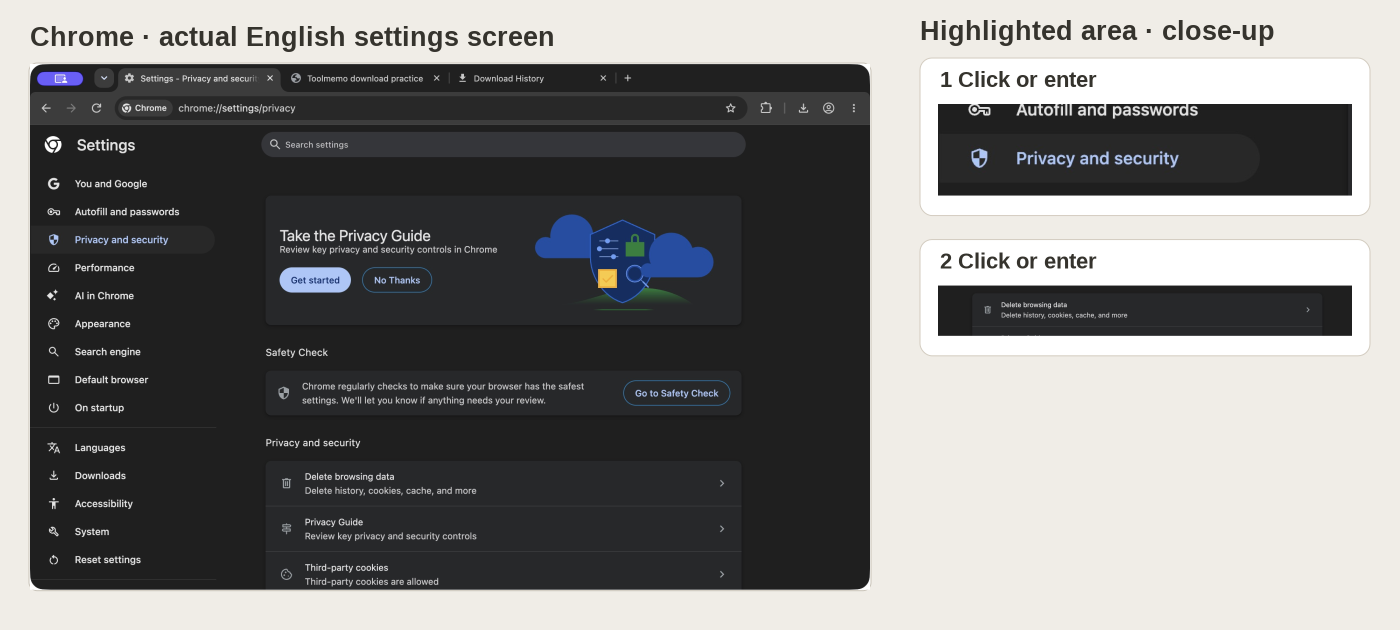
Actual Chrome Settings → Privacy and security. Delete browsing data opens the category-selection dialog; Security and other nearby settings are different controls.
- 1Action Choose Privacy and security.
- 2Action Open Delete browsing data.
2. Check the time range and selected categories
Choose the time range you intend to clear; this example shows Last hour. Use Show more if additional categories are hidden. Select Cached images and files and leave browsing history, cookies, download history, form data, site settings and hosted app data unchecked. Passwords are managed separately in this version.
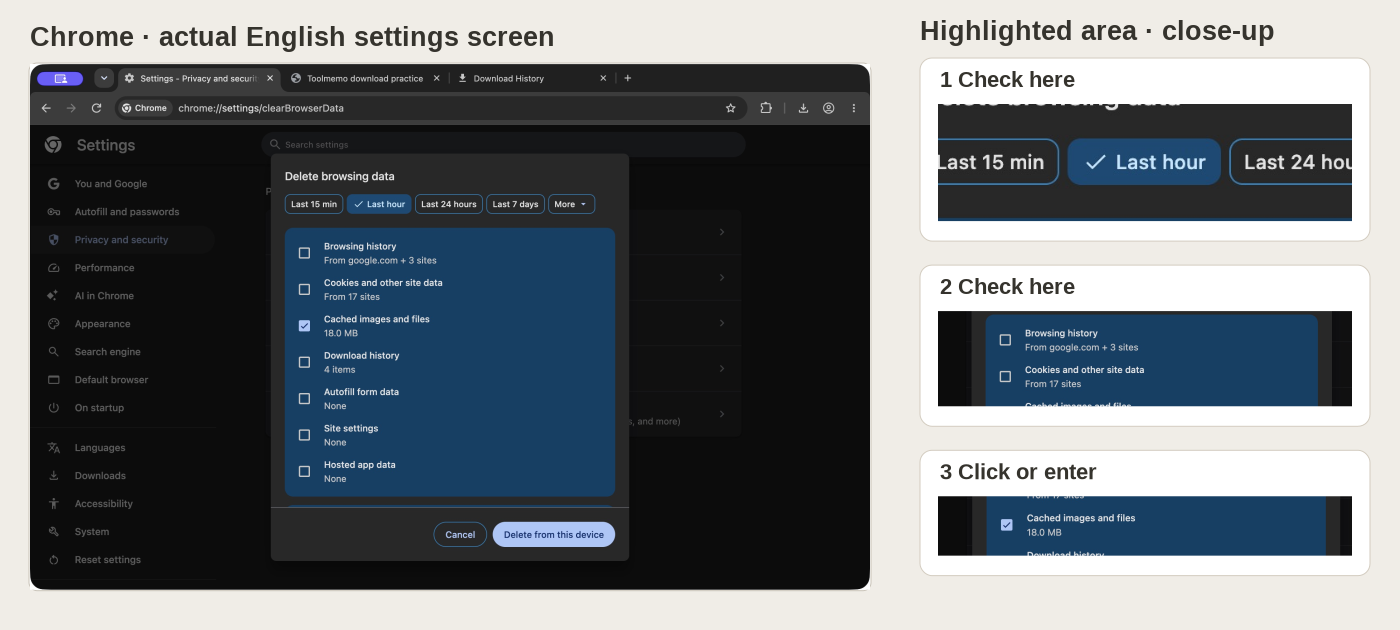
The real expanded English dialog has Last hour and only Cached images and files selected. Cookies, browsing history, download history and the other displayed categories are unchecked. No deletion was executed in this recapture.
- 1Check Check the intended time range.
- 2Check Keep browsing history and cookies unchecked.
- 3Action Select only Cached images and files.
3. Review the final action, then reload the affected page
Check every category before choosing Delete from this device. Cancel closes the dialog without deleting anything. The English capture stops before deletion and shows an 18.0 MB cache snapshot; it is not an after-deletion result.
If you complete the cache-only deletion on your own computer, reload the affected page. Cache can begin filling again immediately, so a nonzero size is not automatically a failure. The earlier recorded practice test completed this operation while leaving download history entries in place.
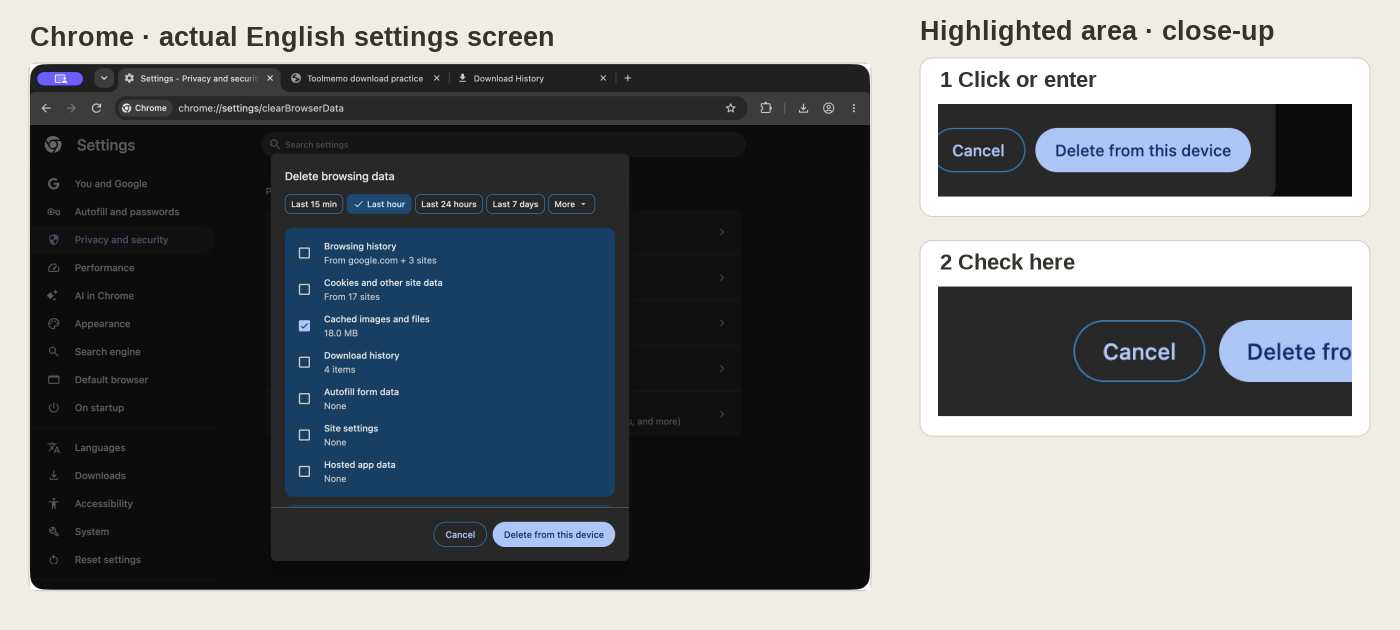
Delete from this device is the final action in this version. The photo shows the button before use; Cancel was chosen during this English recapture.
- 1Action Confirm only after reviewing every category.
- 2Check Cancel leaves the data in place.
Before you share the result
- Cookies and cached files are different categories. Deleting cookies too can sign you out of websites. Password management is a separate action and was not used in the original test.
- A page may load more slowly the first time its resources are downloaded again. If the problem persists, investigate another cause rather than repeatedly deleting data.
English category selection and the final confirmation control were inspected on 18 October 2026. No browsing data was deleted in this recapture; Cancel was used. The earlier recorded Korean-interface test completed a cache-only deletion. The 18.0 MB visible here is the new pre-deletion snapshot, not that earlier result.