Need a check mark, an arrow, or a star? Open the character picker where you are already typing.
Checked October 21, 2026 · macOS 26.5.2 · English interface, except the labelled reused emoji grid
Click in a text field and press
Control
+
Command
+
Space
. You can also use
Edit → Emoji & Symbols
in an app that offers that menu.
Open an editable document. The examples use a practice document in TextEdit, which is included with macOS.
Orange solid: action/inputBlue dashed: result to check
01. Open the picker at your insertion point
Place the insertion point in the document first. Use the shortcut or choose Edit → Emoji & Symbols. If the shortcut conflicts with something else, try the menu.
Full window + connected detail
The real emoji popover is attached to the lower-left part of the TextEdit window. This Korean capture is reused to show its location and language-independent emoji grid; the English TextEdit result is shown separately below.
① The emoji grid is in this popover. Its search field is at the top.
02. Find a symbol, then insert it
Browse a category or search for the character you need. Apple describes clicking a character in the compact picker, or double-clicking one in the expanded Character Viewer. Your viewer may open in the layout you last used.
03. Copy a character when that is quicker
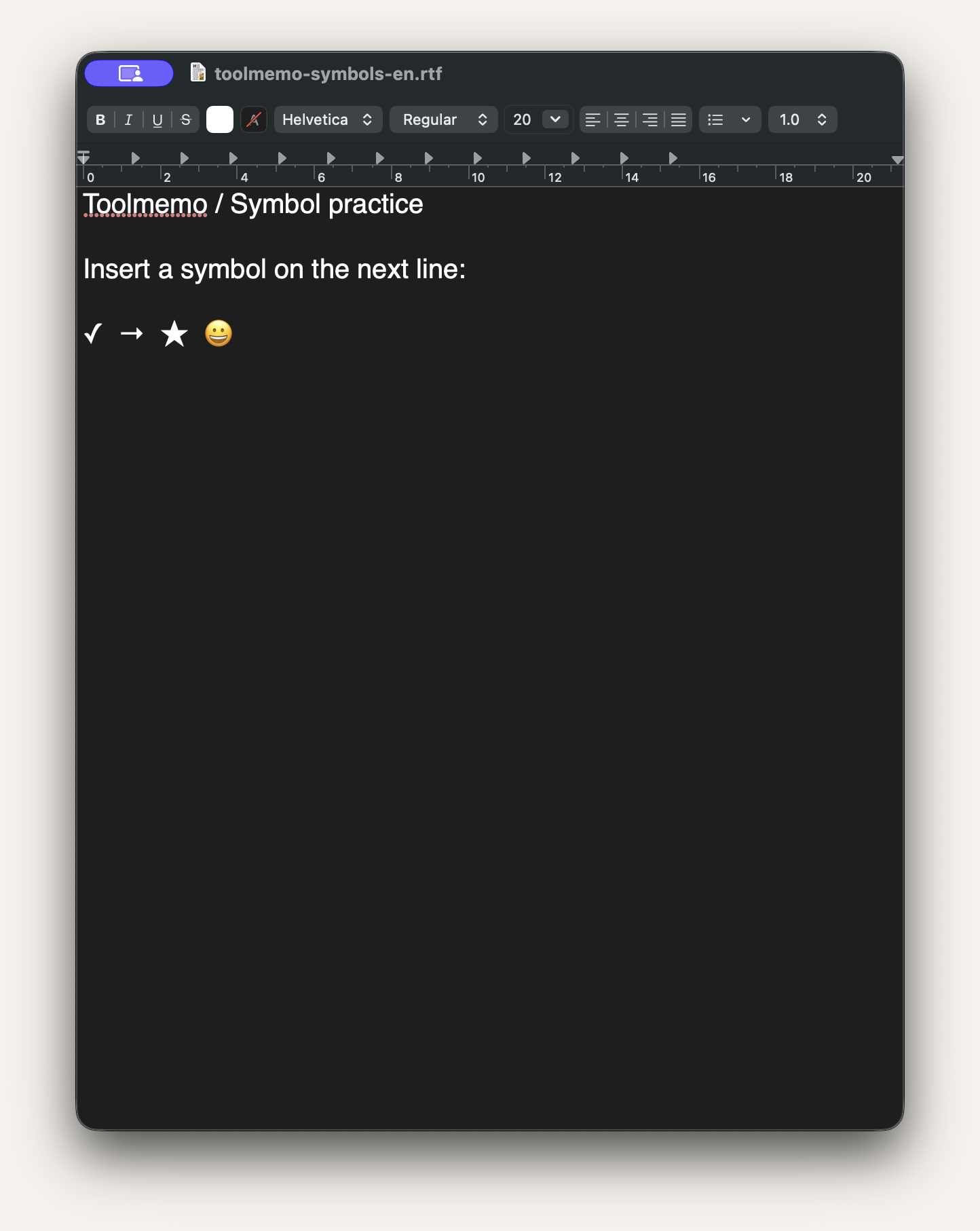
For occasional use, select and copy these characters: ✓ → ★ 😀The example below shows these four characters copied into TextEdit and saved.
Full window + connected detail
The English TextEdit practice document after the characters were pasted and saved.
① Check that the four characters appear as text in the document.
04. If a character looks different
Fonts and apps can draw the same character differently. If you get an empty square, try a font that supports the character and reopen the saved document. To put a character on a PDF, first select or create a text box in your PDF app.
What we verified
We checked the picker opening and the saved TextEdit examples. This does not establish support in every app or font.
툴메모는 허용한 방문에 한해 Google Analytics로 방문자 수와 유입 경로를 분석합니다. 쿠키 식별자·방문 페이지·유입 사이트·기기 정보가 Google에 전송됩니다. 거부해도 모든 글을 이용할 수 있으며, 아래의 ‘방문 분석 설정’에서 언제든 바꿀 수 있어요. 자세한 안내