Open the page, choose Chrome’s three-dot menu → Cast, save, and share → Create QR code, then inspect the address and download the image.
1. Open the page you want people to visit
Open the public page you intend to share. The English run uses https://mijualgi.com/en/. Open the three-dot menu → Cast, save, and share → Create QR code. The captured submenu is shown separately beside the full browser context; it is not pasted into a fabricated browser screen.
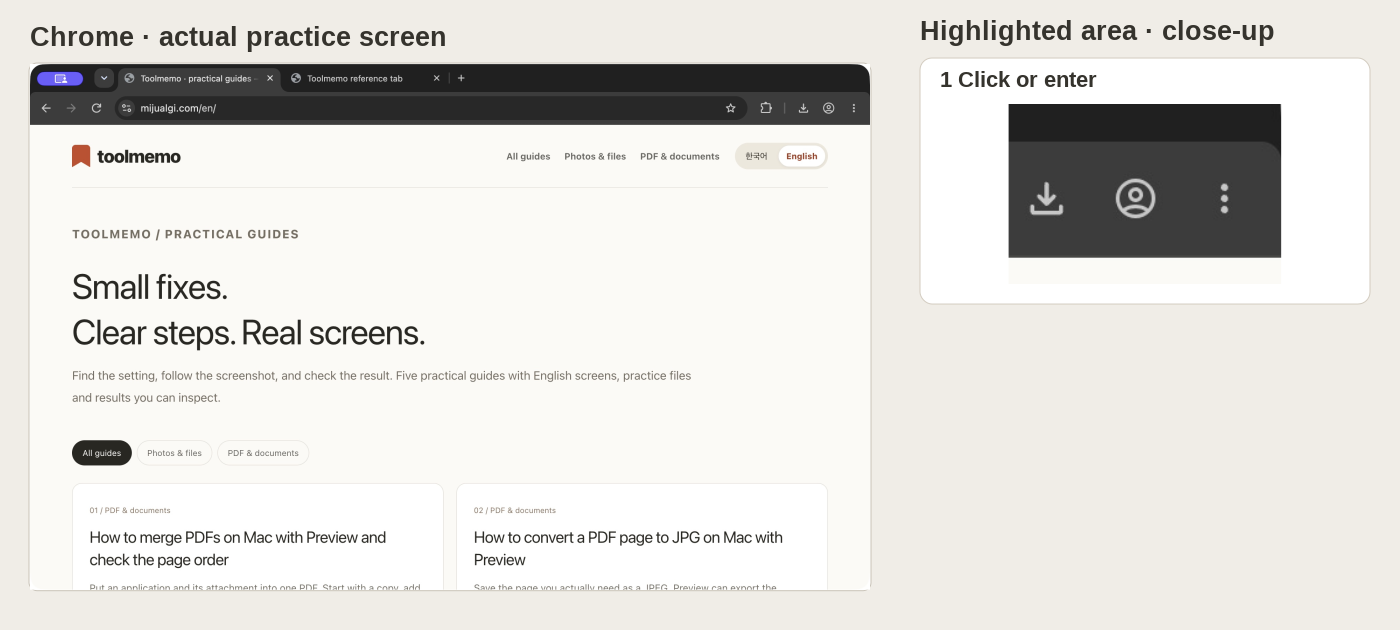
The actual public English home is open in Chrome. Begin with the three-dot browser menu.
- 1Action Open the Chrome menu.
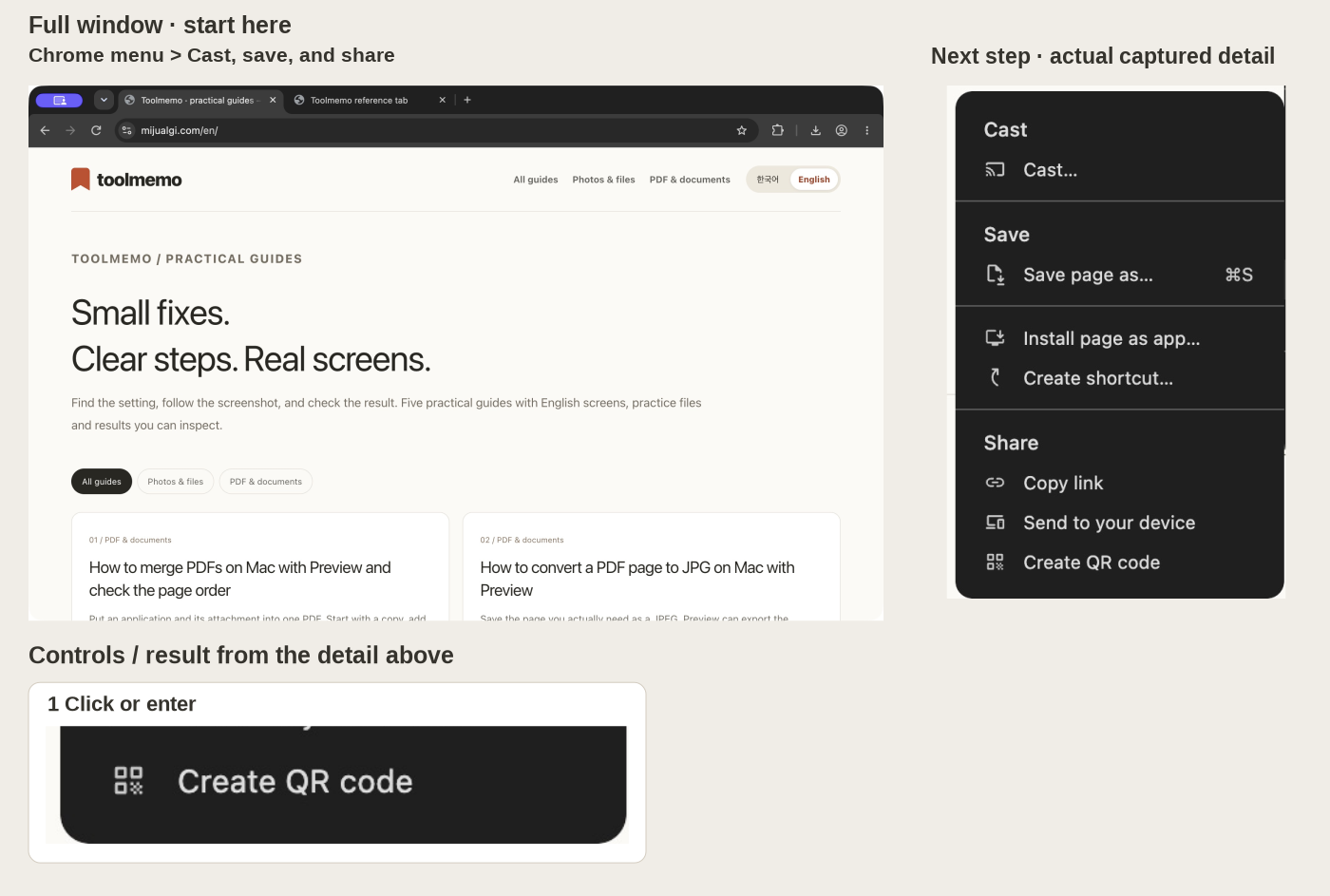
Actual Cast, save, and share submenu crop. This is a later state captured separately from the large browser context. The large view locates the app and workflow. The separate image is a real cropped view from the specified step; it is not pasted into the app window.
- 1Action Choose Create QR code.
2. Read the address under the QR code
Confirm the complete destination in the QR panel. A QR code encodes the address, not a saved copy of the page content. Avoid temporary sign-in links, private documents or URLs containing authentication values. Include the site name and a readable address beside a printed QR so recipients can check its purpose.
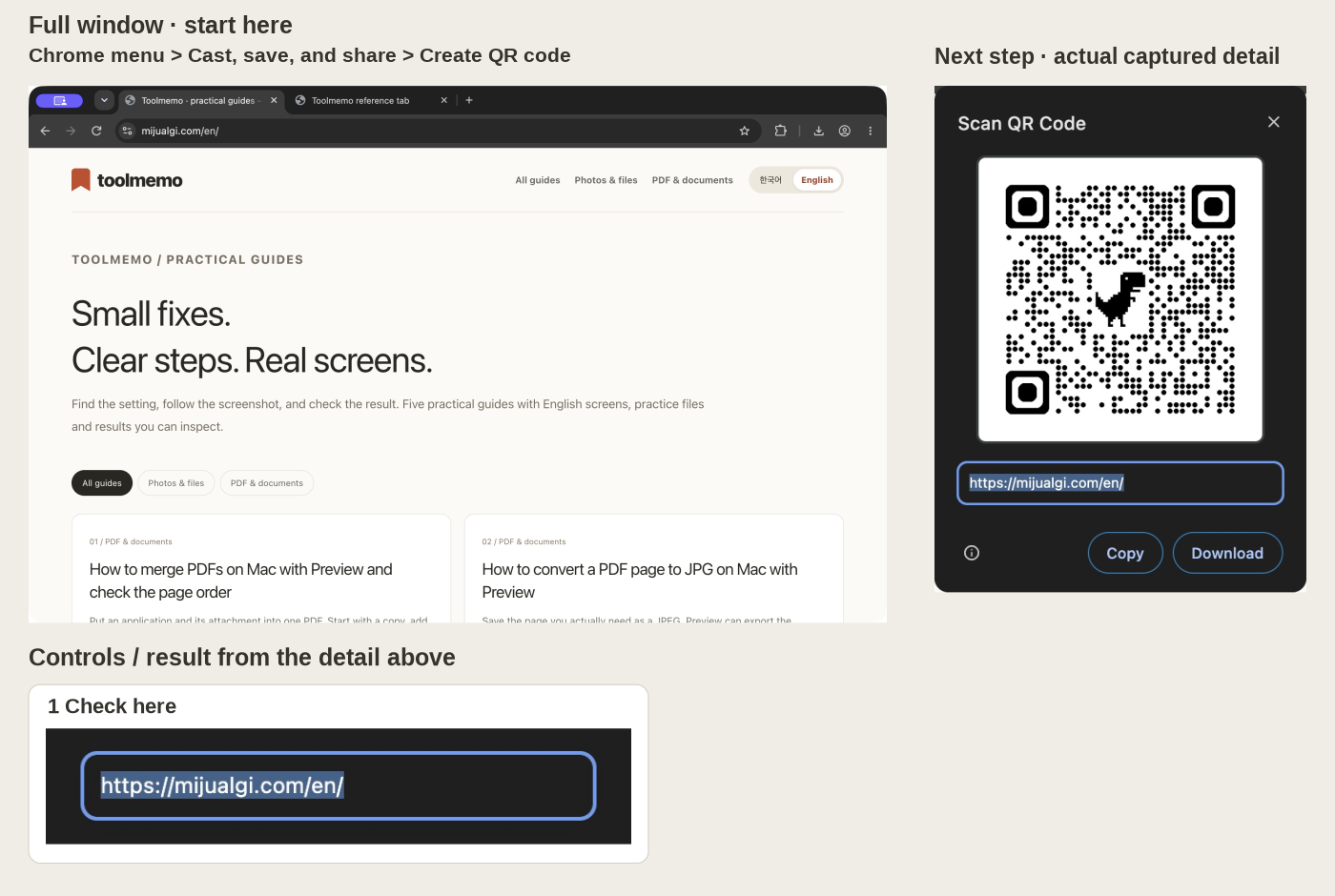
Actual Scan QR Code panel for https://mijualgi.com/en/. The address was taken directly from the open public page; no private sign-in link is used. The large view locates the app and workflow. The separate image is a real cropped view from the specified step; it is not pasted into the app window.
- 1Check Read the complete public destination.
3. Download the PNG and test before distributing it
Choose Download. The English run saved qrcode_mijualgi.com (1).png, 6,078 bytes. The suffix appeared because a file with the base name already existed. Generation and download were verified; a phone scan was not performed. Before distributing your own code, scan the final image, check its address and open the intended page.
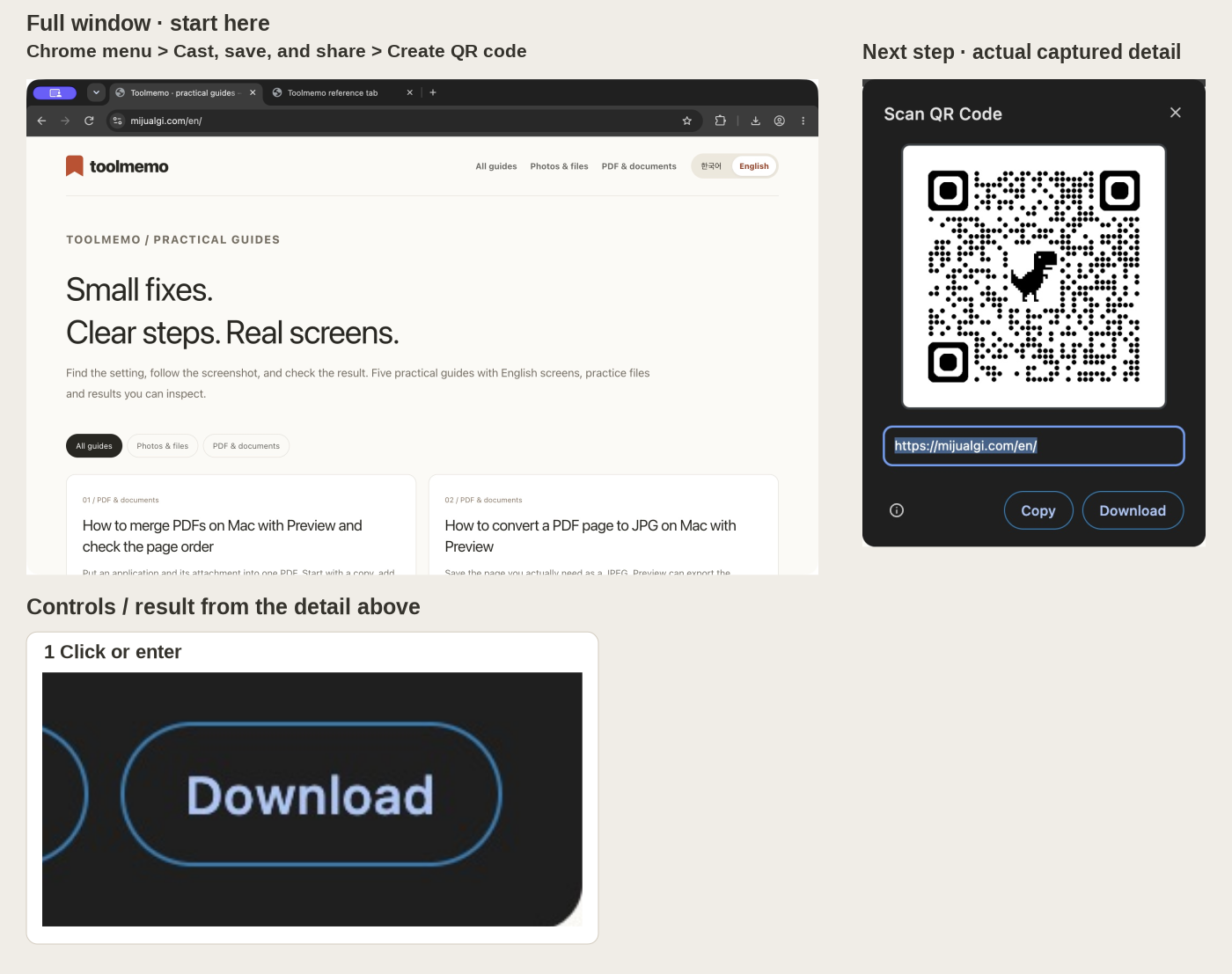
Download saved a 6,078-byte PNG. This capture shows the Download control before clicking it. A phone scan was not performed. The large view locates the app and workflow. The separate image is a real cropped view from the specified step; it is not pasted into the app window.
- 1Action Download the generated image.
Before you share the result
- Keep the white margin around the code. Tight cropping or excessive shrinking can make it harder to scan.
- Test the final printed or shared version rather than only the large preview in Chrome.
English practice screens were captured on macOS 26.5.2 on 18 October 2026. All documents and images shown are tutorial samples. Results apply to these examples; interface labels can differ by version.