In Finder, select the images, Control-click the selection, and choose Quick Actions → Create PDF. Keep the source images until you have opened and checked the new PDF.
1. Select only the images you need
The English practice run uses copies of 01-cover.jpg, 02-checklist.jpg and 03-notes.jpg. Select only these three images. Hold Command to select individual files, or use Command–A when the folder contains only the images you need. Apple says PDF page order follows selection order; verify the actual output too.
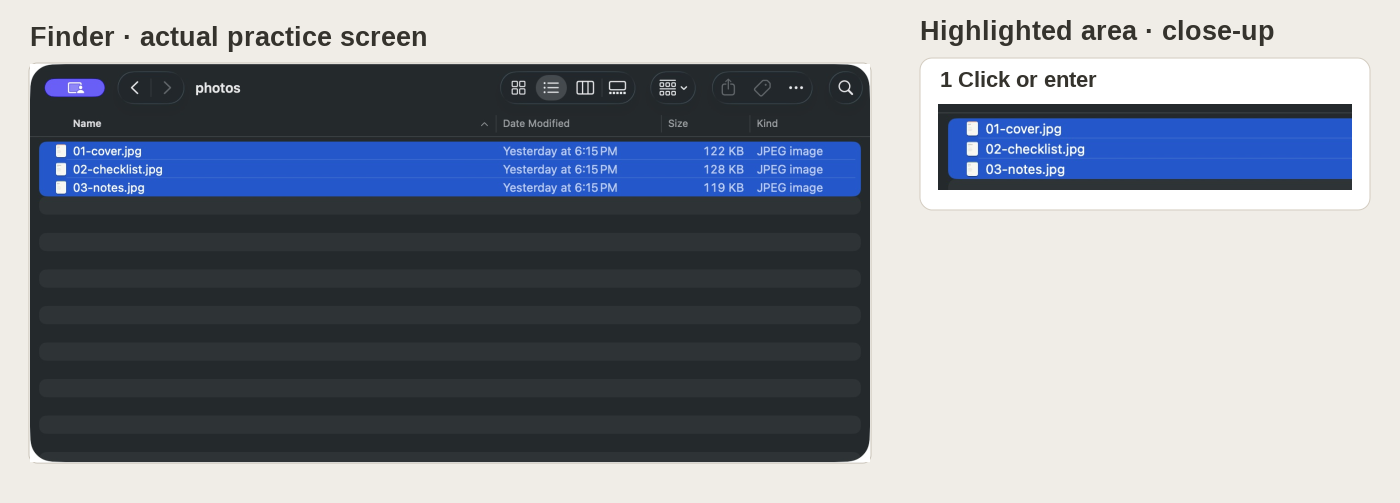
Three copied practice images are selected in English Finder. The folder contains only these three inputs at this stage.
- 1Action Select the three intended JPG inputs.
2. Choose Quick Actions → Create PDF
Right-click the selection and choose Quick Actions → Create PDF. The English Finder created 01-cover.pdf in the same folder without a separate Save dialog. Look for the newly created PDF rather than assuming that every input set produces the same name.

The real shortcut menu is open in a full-size Finder window. Create PDF is in Quick Actions. A later copy of the same three images is used to demonstrate the menu location.
- 1Action Open Quick Actions.
- 2Action Choose Create PDF, below Rotate Left.
3. Open the PDF and inspect each page
Open the new file in Preview and show View → Thumbnails. The saved English-run PDF contains three image pages, in COVER → CHECKLIST → NOTES order, and is 356,506 bytes. The screenshot shows the first full page and all three thumbnails. Check every page for missing pictures or cropped edges.
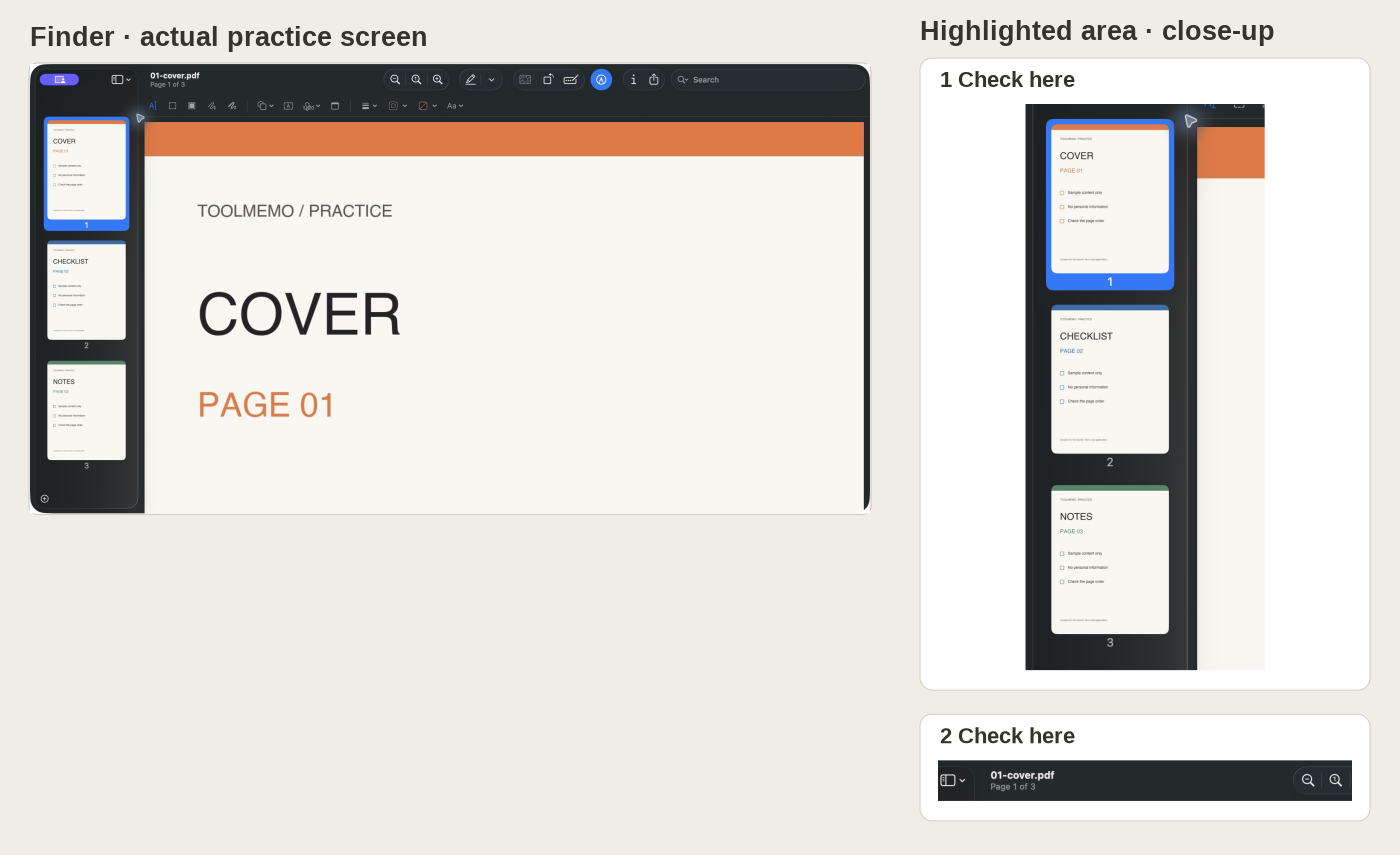
The created 01-cover.pdf is open in Preview. All three thumbnails and the COVER page are visible. The saved PDF is 356,506 bytes.
- 1Check Check all three thumbnails in sequence.
- 2Check Confirm Page 1 of 3 and the saved PDF name.
Before you share the result
- Creating a PDF is different from changing .jpg to .pdf in a file name. Renaming an extension does not convert the file.
- This workflow makes one PDF page per image. Placing several pictures on one A4 or Letter page requires a separate layout step. A PDF is not necessarily smaller than its source JPGs.
English practice screens were captured on macOS 26.5.2 on 18 October 2026. All documents and images shown are tutorial samples. Results apply to these examples; interface labels can differ by version.