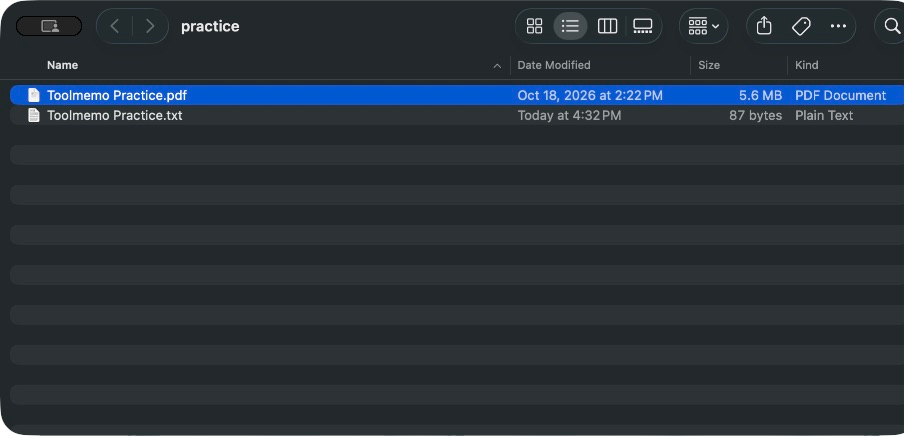
For a reversible demonstration, we used an app copy named Toolmemo Practice in a practice folder. Your installed app will normally be in Applications. This does not demonstrate uninstalling the protected system Calculator app.
01. Quit the app first
Use Command + Q after saving any open work. If the app will not respond, review the force quit guide before continuing.
02. Select the correct app in Finder
Open Applications in Finder and check the app name. The screenshot uses the practice copy. Do not substitute a document or project folder for the app itself.

03. Move the app to the Trash
Choose File → Move to Trash or press Command + Delete. Your Mac may request an administrator password. The practice copy disappeared from its folder. We did not empty the Trash.
04. Undo an accidental move
Before doing other file operations, check Edit → Undo Move in Finder. We restored the practice copy this way. This is not a recovery method for items after the Trash has been emptied.

If the app cannot be deleted
An “in use” message can mean the app is still running. Some apps required by macOS cannot be removed. Do not disable system protections or delete unfamiliar support files to force removal. Removing an app does not cancel its subscription or necessarily remove documents and separately stored data.