The red close button closes a window; it does not necessarily quit an app. The keyboard shortcut above is the quick route. The English screenshots below show the alternative Activity Monitor route. We used an already saved TextEdit practice document, without reproducing a genuine app freeze.
01. Try a normal quit
Save your document if the app still lets you. Use App name → Quit or Command + Q. Stop here if the app closes normally.
02. Use Activity Monitor as an alternative
Open Applications → Utilities → Activity Monitor. On the CPU tab, use Search to find the app, then select its exact name. Our target was TextEdit, not a helper process. Choose Stop; in the pictured narrow toolbar, it is in the overflow menu.

- ① Select TextEdit.
- ② In this narrow toolbar, Stop is inside the overflow menu.
03. Confirm Force Quit for the correct app
Read the process name in the confirmation sheet. Quit attempts a normal exit; Force Quit closes it immediately and can lose unsaved changes. We chose Force Quit only for the saved practice app.

- ① Check that the named process is TextEdit, then choose Force Quit.
04. Check the result and reopen your saved file
The TextEdit-filtered list became empty after the app closed. Reopen the app and check the last saved file. If an app offers document recovery, review that prompt; recovery is not guaranteed.
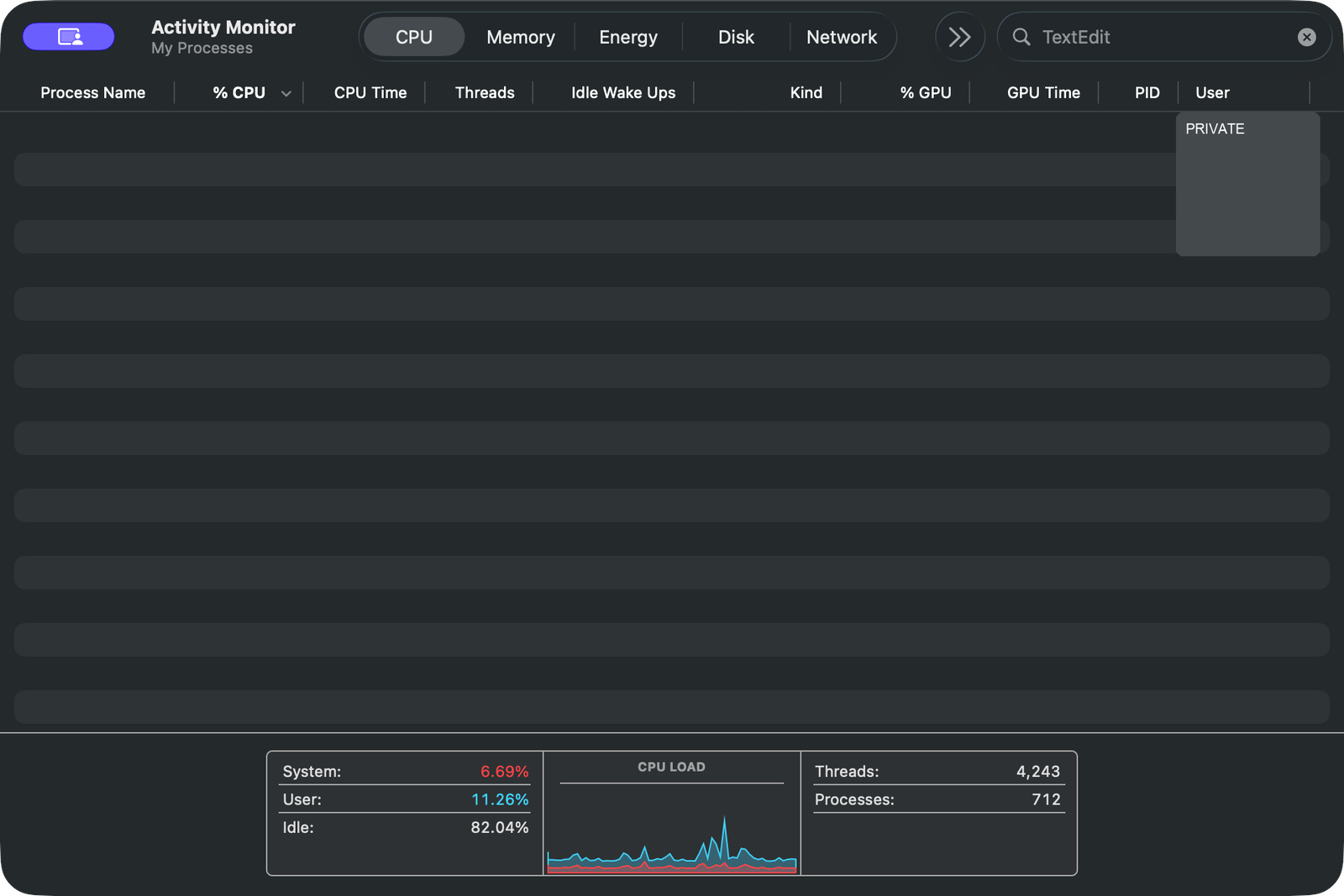
- ① The app and its matching helper entries are no longer listed.
If the same app keeps freezing
Repeated force quitting does not identify the cause. Check whether the issue happens with one document or every document, and whether the app is up to date. A restart may be worth considering after saving other work if several apps are affected. We did not test restarting or recovering unsaved data.