AI · PRACTICAL GUIDE
Translate a PDF with DeepL and check the downloaded result
Use file translation, then compare dates, numbers and layout with the original.
Start with a simple practice document
Choose a PDF with selectable text for an initial test. Our fictional workshop handout contains no personal information or real event details. The original is one page and 2,161 bytes.
Try a non-sensitive sample before considering a private document. Password protection, poor scans and complex layouts can require different handling.
1. Open Translate files and choose a PDF
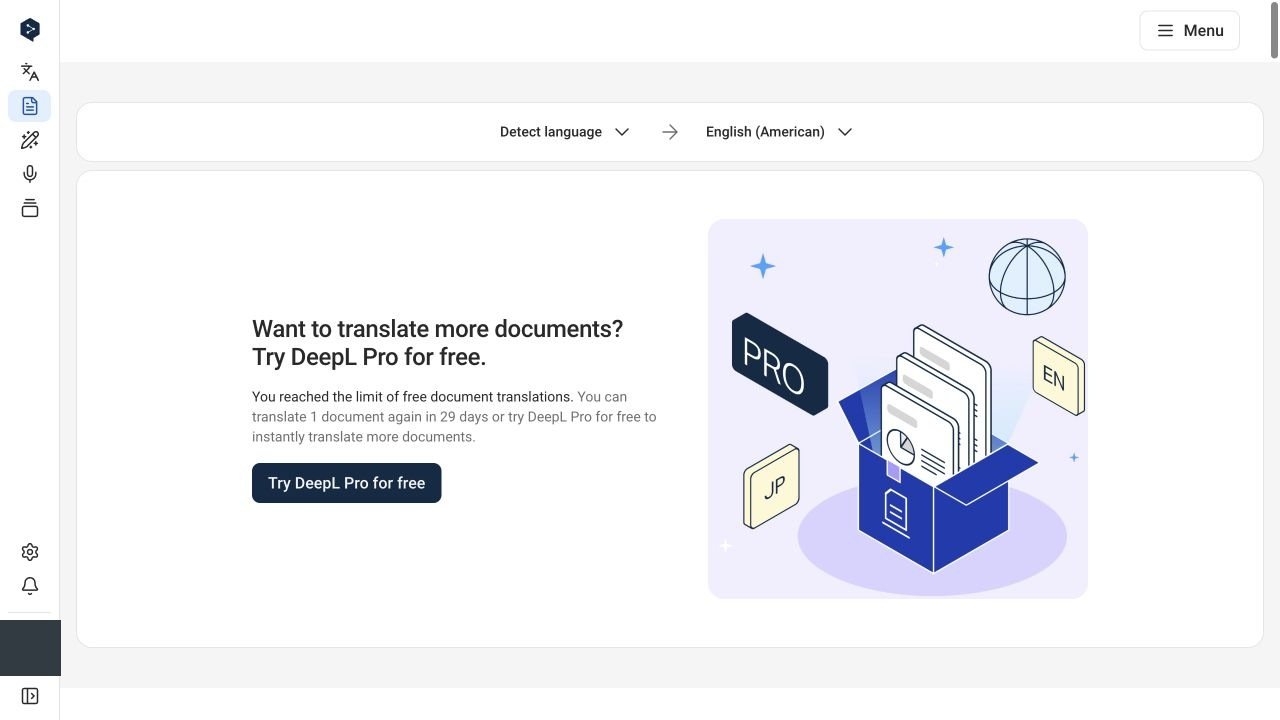
Sign in at DeepL Translate files. Choose the file from your computer and verify its name before starting. The Korean interface was used for the actual translation run; the English interface below was captured from the same account afterward.
2. Choose the target language, not just the interface language
We left the source on Detect language and chose Korean as the target. Changing the website interface to English does not make English the target language automatically. Check the direction beside the file, then start translation.

3. Download and compare the actual output
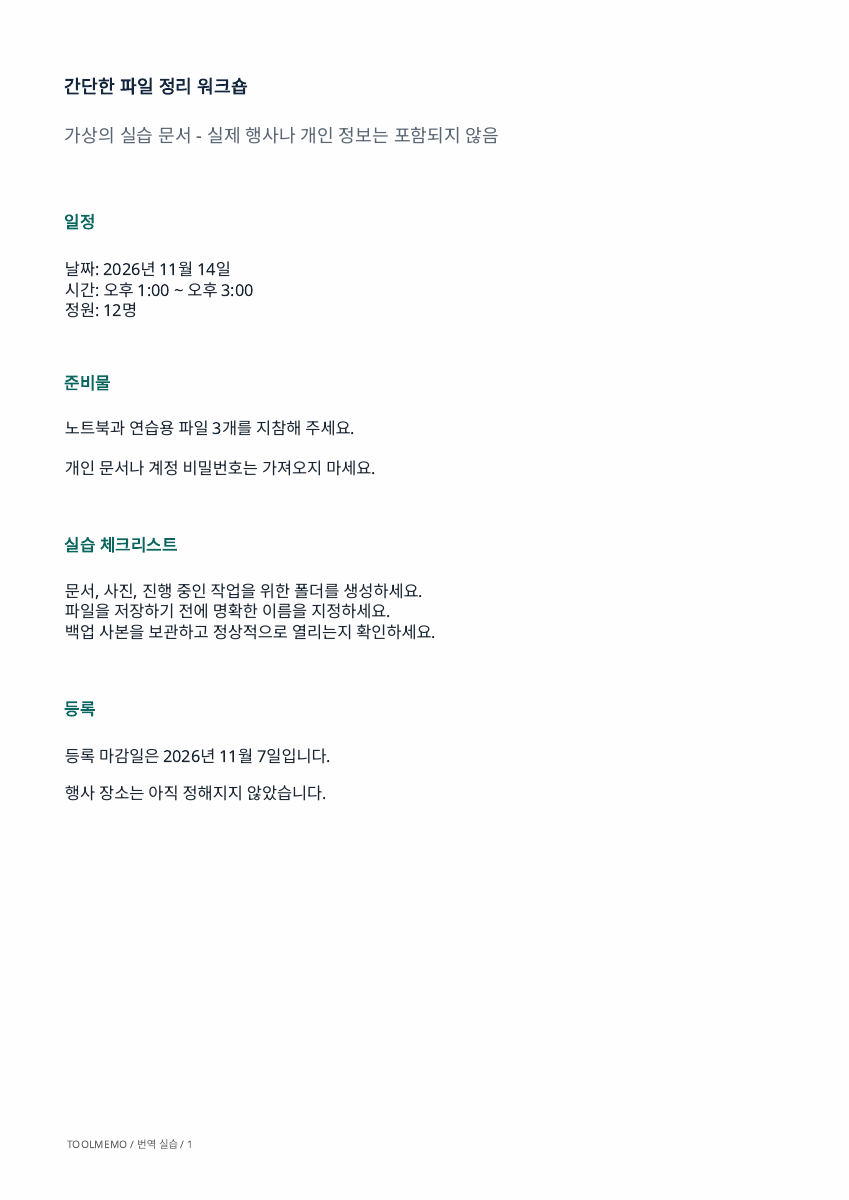
The completed job showed 1/1 translated file and a download link. We saved a one-page PDF measuring 117,637 bytes. Its larger file size does not by itself indicate better translation quality.

Check details before sharing the translation
- The workshop date remained November 14, 2026; registration still closed November 7.
- The time remained 1–3 p.m. and capacity remained 12.
- The result retained the statement that the venue had not been decided.
- This simple document stayed on one page. We did not test a complex table or multi-column file.
Review wording as well as numbers. A successful download is not proof of accuracy. When the free allowance is exhausted, check the actual reset notice in your account rather than relying on an old online quota.