Open the PDF in Preview, press Command–F, enter a short word or phrase and press Return. Choose a result in the left sidebar to move to that page.
1. Start with a short word
The practice PDF contains selectable text. In the new English screen run, searching for REPORT shows Found on 3 pages, with a separate result for pages 1, 2 and 3. A count of matching pages is different from a count of every occurrence inside one page. Start with a distinctive word rather than a long sentence.
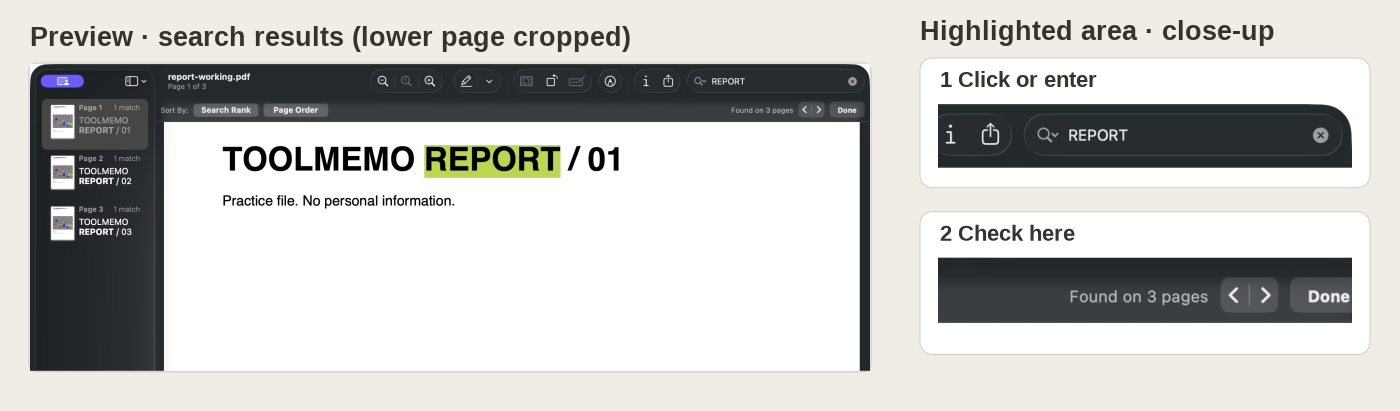
REPORT is entered in Search. Preview reports matches on three pages; the lower picture area is cropped.
- 1Action Enter the search word here.
- 2Check Check Found on 3 pages.
2. Select a result to go to its page
Click Page 2 and its TOOLMEMO REPORT / 02 result in the sidebar. The English test moved to the second page with the word highlighted. Check the page number near the document title too. Use the previous or next result controls if needed, or choose Page Order to follow the document’s order.
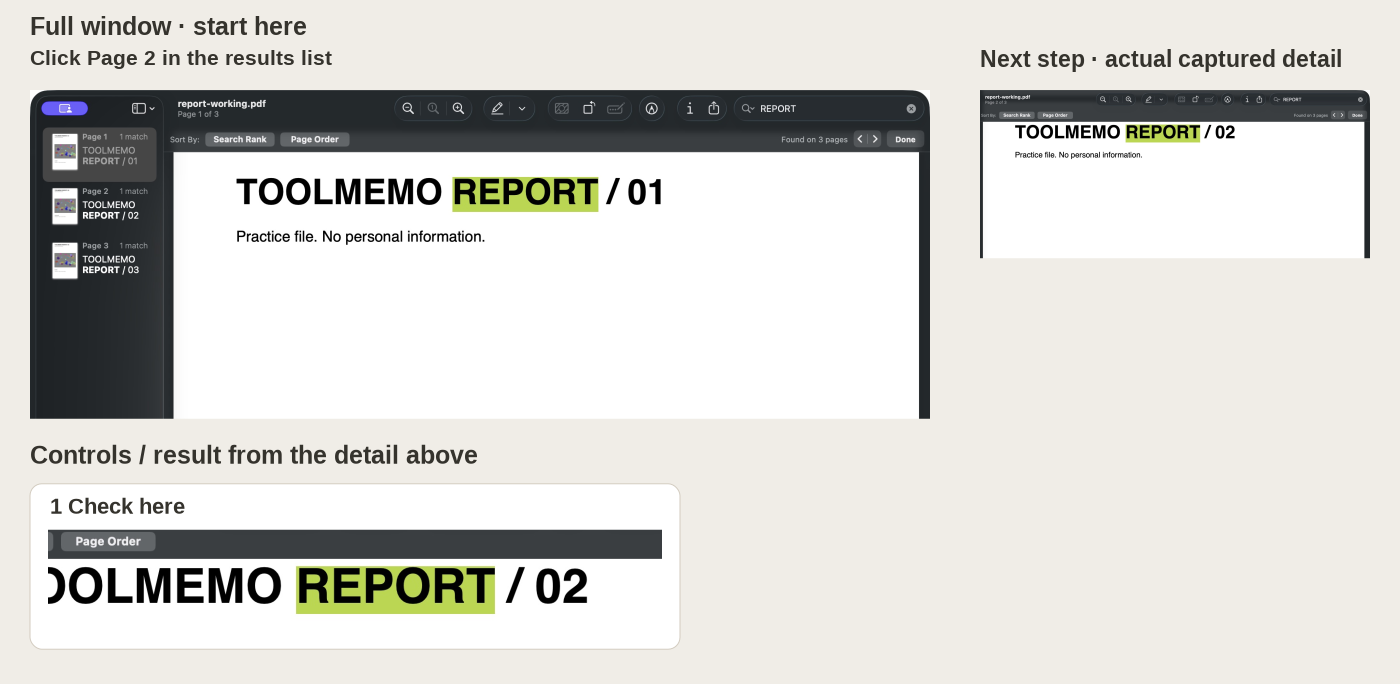
After Page 2 is chosen in the results list, the main view shows TOOLMEMO REPORT / 02. The separate actual view is cropped to exclude the sidebar. The large view locates the app and workflow. The separate image is a real cropped view from the specified step; it is not pasted into the app window.
- 1Check Check / 02 and the matching word.
3. Check spelling when no results appear
The test phrase TOOLMEMO-NOT-FOUND produces No Results Found and disabled navigation buttons. Shorten a longer phrase, check spaces and consider line breaks before deciding the information is absent. Click Done when you want the thumbnail sidebar back.
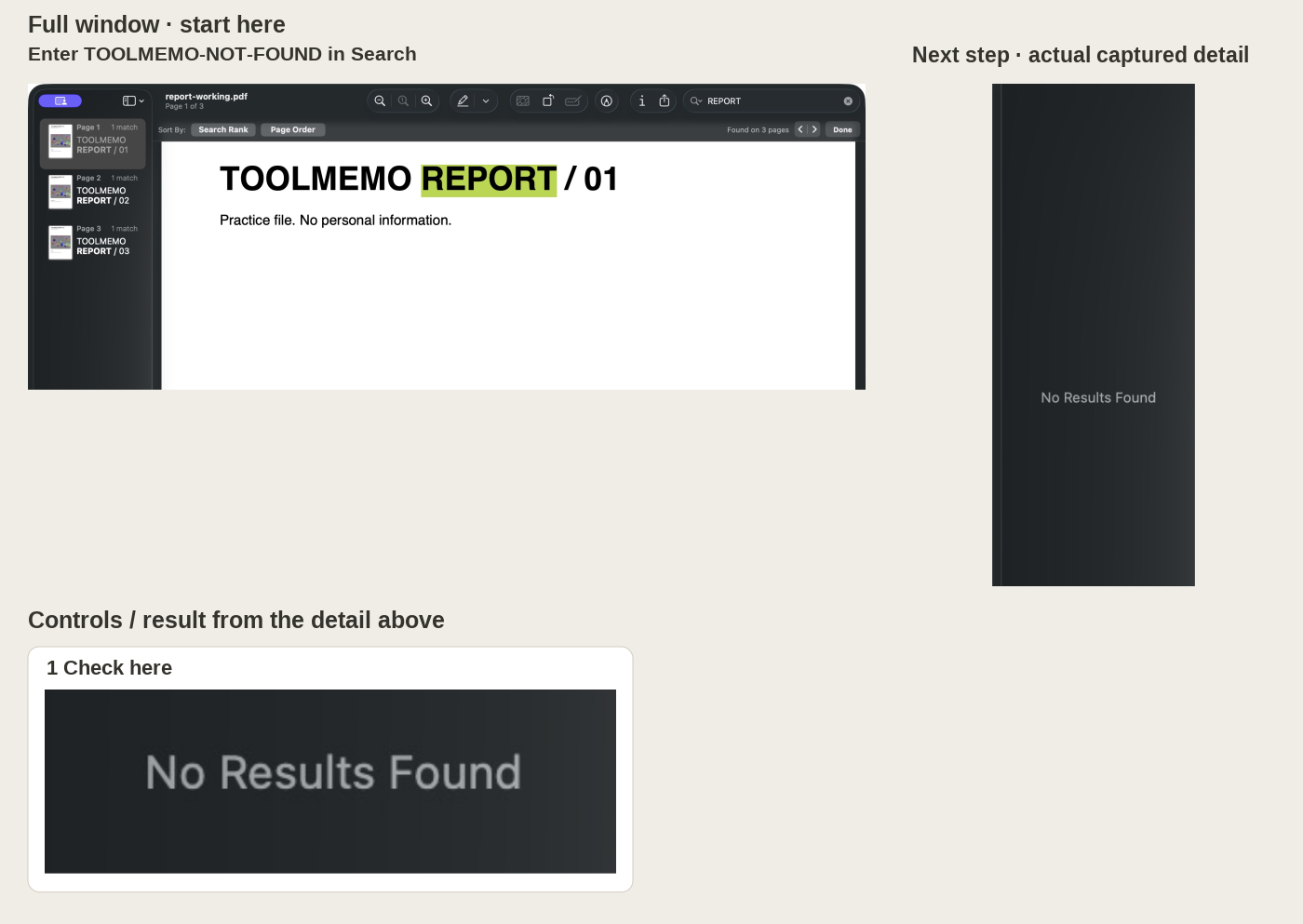
Searching TOOLMEMO-NOT-FOUND displays No Results Found in this actual sidebar crop. The large view above locates the Search field and results panel. The large view locates the app and workflow. The separate image is a real cropped view from the specified step; it is not pasted into the app window.
- 1Check Read No Results Found in the results panel.
Before you share the result
- This demonstration does not perform OCR on a scanned PDF. If visible words cannot be selected or searched, the PDF may contain pictures of text rather than a searchable text layer.
- A successful search for one word does not establish that every page was correctly recognized. Check the relevant page itself before copying or quoting its content.
English practice screens were captured on macOS 26.5.2 on 18 October 2026. All documents and images shown are tutorial samples. Results apply to these examples; interface labels can differ by version.