Press Command–F on Mac or Ctrl–F on Windows, then enter a short word or phrase in Chrome’s Find box.
1. Open Find and enter a distinctive word
Press Command–F and type file. The English practice page has five matches: 1/5 means the first of those five. The current match is orange, while other visible matches are yellow. Counts depend on the page, spelling and loaded content.
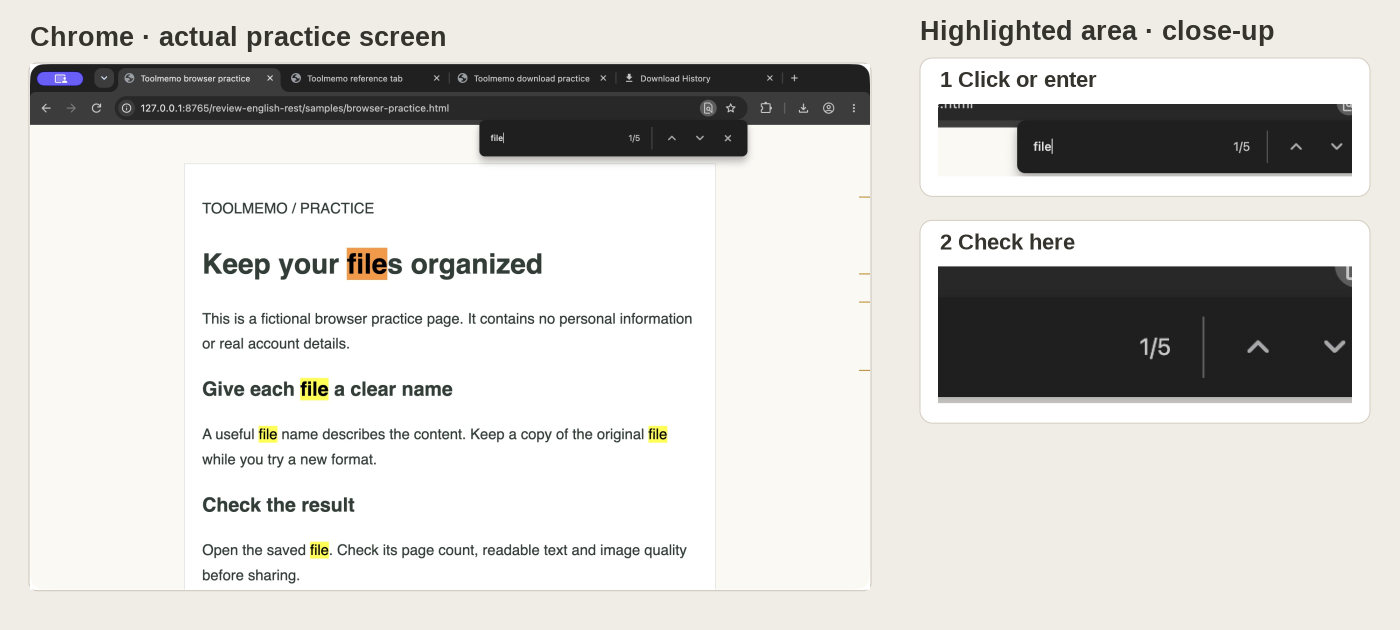
The actual English page contains five matches for file. The Find box displays 1/5 and the current match is orange.
- 1Action Type the word in Find.
- 2Check Read 1/5, the first of five matches.
2. Move to the next match
Press Enter while the Find field has focus, or use the next-result arrow. In the actual English run, the counter changes from 1/5 to 2/5 and the current highlight moves to the next occurrence. Shift–Enter or the previous-result arrow goes back.
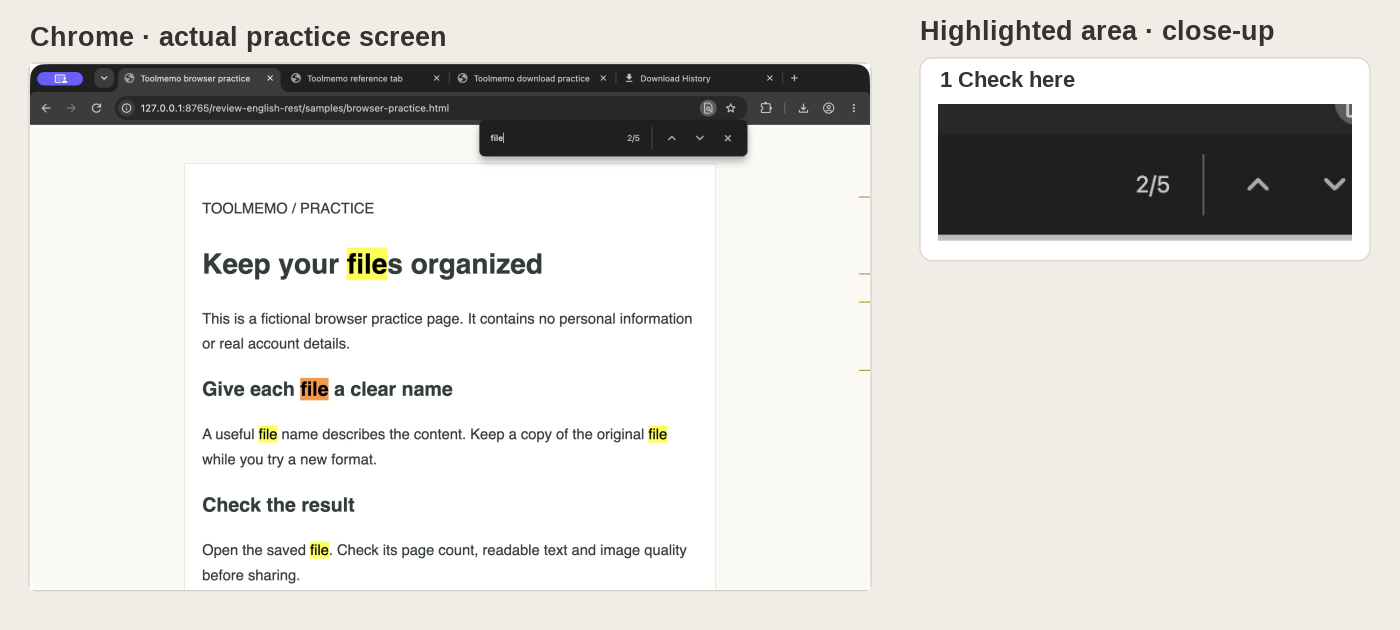
Enter moves to the next actual match and the counter reads 2/5.
- 1Check Check that the result changed to 2/5.
3. Read a zero-result counter correctly
Replacing the search with TOOLMEMO-NOT-FOUND and submitting it produces 0/0 and disabled navigation arrows. Check spelling, spaces and whether the relevant text is on another page. A zero result describes this page, not the entire website.
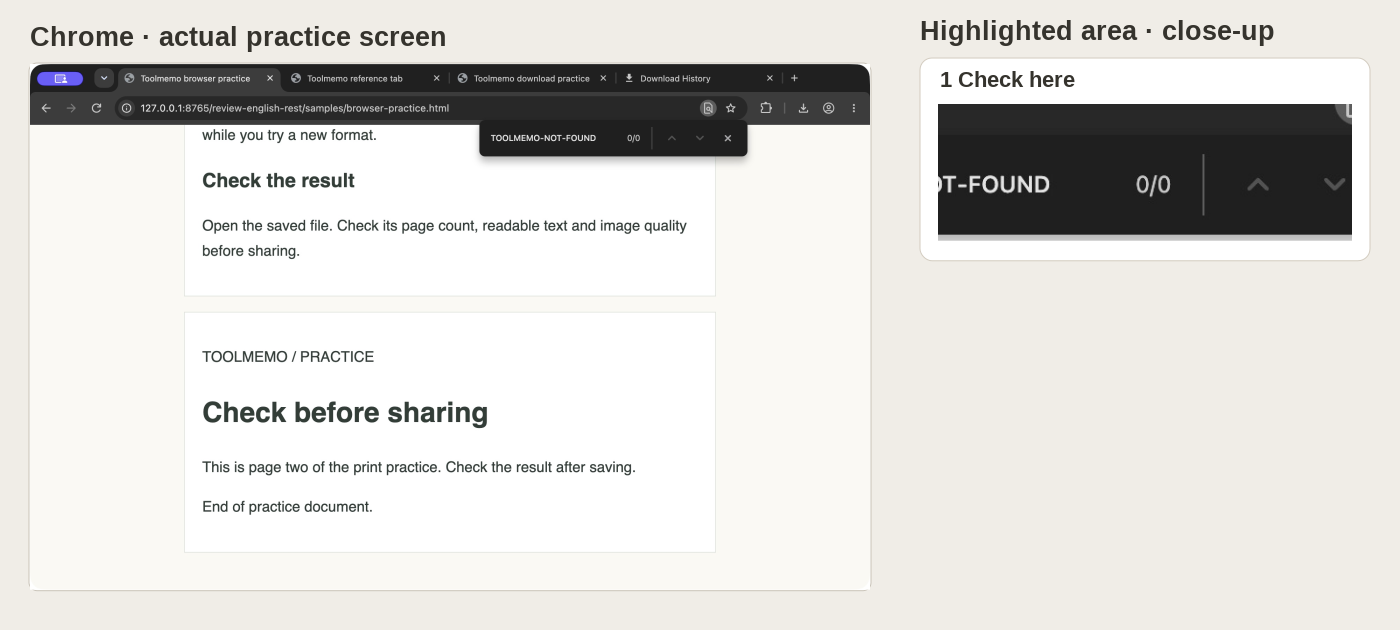
After submitting TOOLMEMO-NOT-FOUND, the real counter shows 0/0 and the navigation arrows are disabled.
- 1Check Read 0/0 for this page and phrase.
Before you share the result
- This workflow searches selectable webpage text. It does not establish that text inside a picture or a separate document will be found.
- If text goes into a site form or the address bar, press Command–F again to focus Chrome’s Find box. Close Find with its × button or Escape when finished.
English practice screens were captured on macOS 26.5.2 on 18 October 2026. All documents and images shown are tutorial samples. Results apply to these examples; interface labels can differ by version.