Open the PDF in Preview and choose File → Print. Under Pages, choose Range from and enter the page number in both boxes. Then choose PDF → Save as PDF… at the bottom left.
This example keeps only page 2 of a three-page practice report. The original stays in place, and the new file contains one page. No printer or PDF subscription is needed for this save route.
1. Find the page you want to keep
Open pdf-practice.pdf in Preview. Choose View → Thumbnails if you need the page list. The page we want is TOOLMEMO REPORT / 02, headed CHECKLIST. It is the second page in the document.
Check the page’s position in the sidebar as well as any number printed on the page. In other PDFs, a printed page number can differ from the document’s page position.
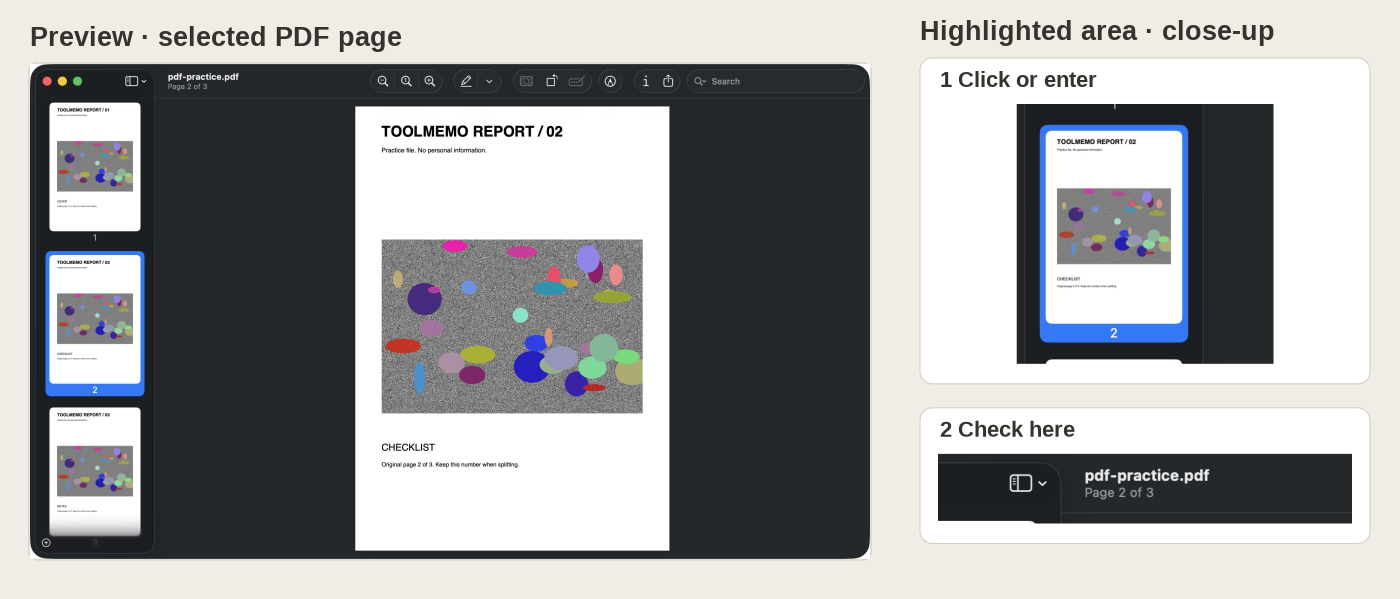
Start in the PDF itself. The second thumbnail is the page we will keep in a separate PDF.
- 1Action Find page 2 in the sidebar.
- 2Check Confirm that this is page 2 of 3.
2. In Print, set Range from 2 to 2
Choose File → Print… from the menu bar or press ⌘ P. In the Pages section, select Range from. Put 2 in the first box and 2 in the second. The matching start and end numbers keep just that one page.
The first page appears greyed out in the print preview, while the selected second page remains included. At the bottom left, open the arrow beside PDF and choose Save as PDF…. The Print button may be disabled when no printer is selected; the PDF menu still works.
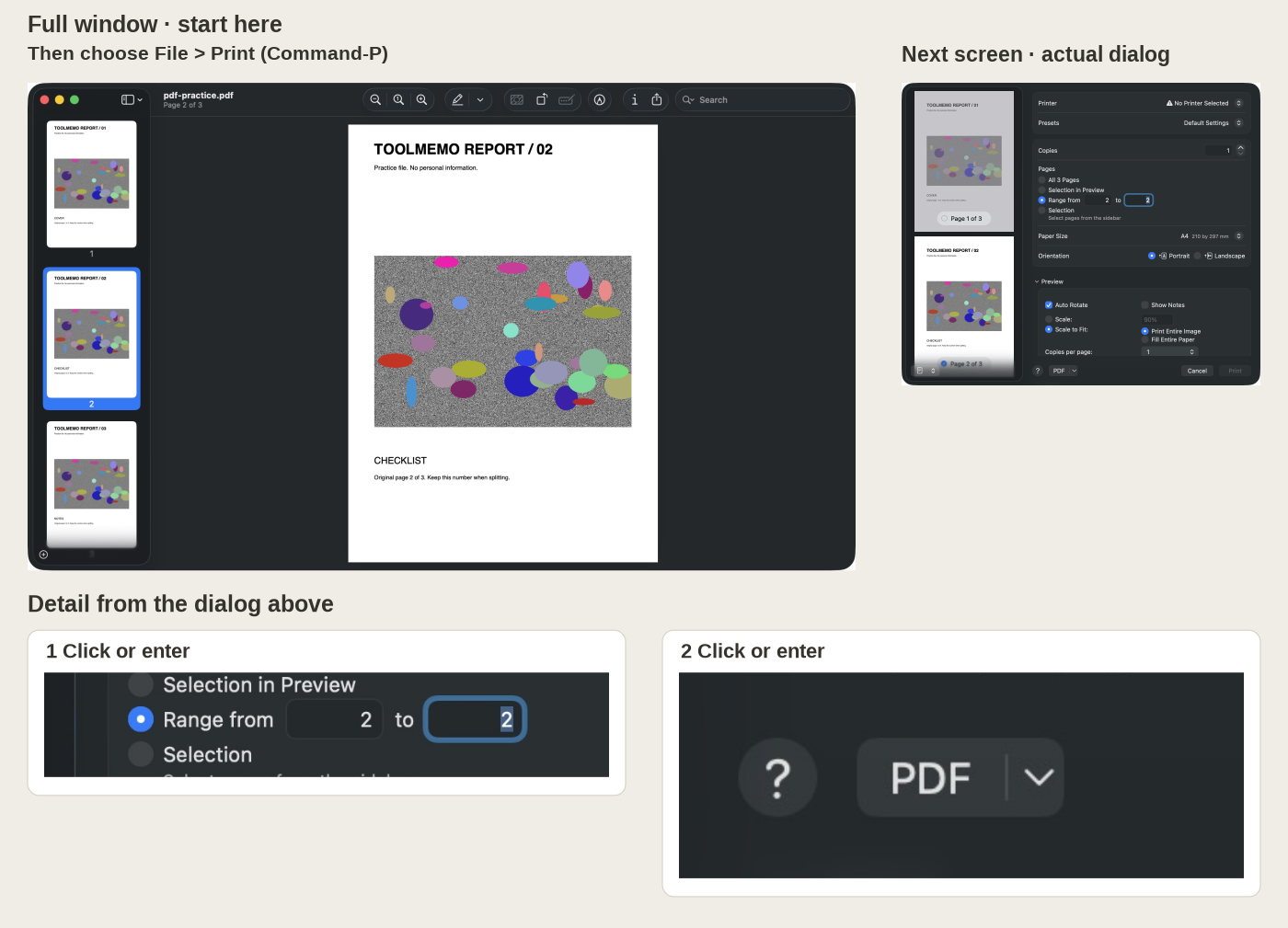
The full Print window shows the page range and the PDF menu in context. Range from 2 to 2 keeps only the second page. The large app view is the preceding screen. The separate dialog is the next step, with its controls enlarged below.
- 1Action Select Range from and enter 2 to 2.
- 2Action Open the PDF menu, then choose Save as PDF.
3. Give the smaller PDF a new name
In Save As, enter a new file name such as page-02-only.pdf. Choose a folder and click Save. Avoid using the original PDF’s name in the same folder, so the complete document remains available.
The optional Title and Author fields are document metadata. Check them before sharing a file; the practice file here uses the public name Toolmemo.

This actual Save dialog follows the Print window. The new name makes it clear that the file contains only the selected page. The large app view is the preceding screen. The separate dialog is the next step, with its controls enlarged below.
- 1Action Use a distinct file name.
- 2Action Save the new PDF.
4. Reopen the result and check the page count
Open the new PDF in Preview. Its title area should say 1 page, and the page should be REPORT / 02, not the cover. If you accidentally saved all three pages, return to Print and check the Range from option before saving again.
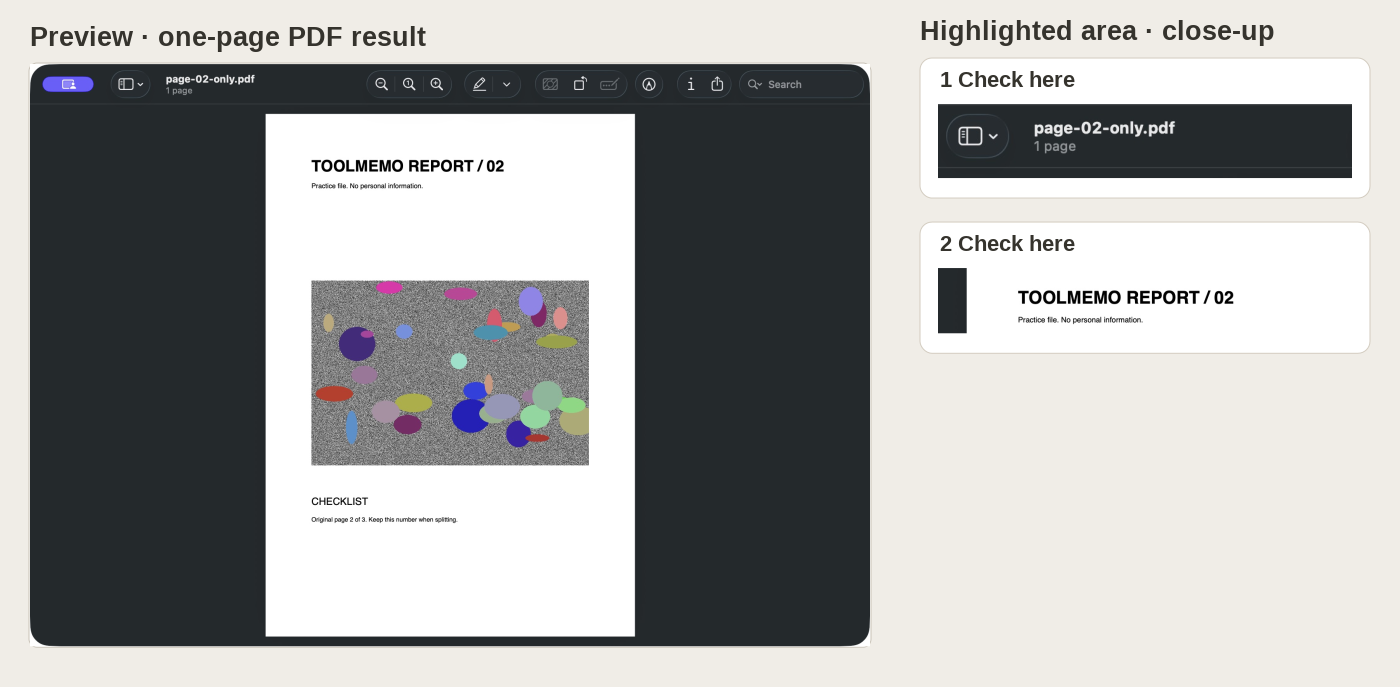
The saved PDF is one page long and contains the original CHECKLIST page.
- 1Check Check the new name and the 1-page count.
- 2Check Confirm the REPORT / 02 content.
The saved PDF contains 1 page, and its extracted text identifies the original second page. The source PDF still contains all 3 pages. Both were checked after saving.
A note about the print layout
Save as PDF follows the Print window’s paper and scaling settings. This example used A4, Scale to Fit and Print Entire Image. Check the saved margins and content before sending the file. Keep the original if you need its editable fields, signatures or other interactive features; a print-to-PDF copy may not preserve those.
The 2-to-2 page range, new PDF save, reopened content and one-page count were checked on 18 October 2026. The final PDF was also rendered for a visual check.