Open the translation icon in the address bar and choose a target language. Choose the original language in the same panel to switch back.
1. Find the translation icon on the page
The English run uses a fictional French page written for this tutorial. Its original heading is Organisez vos fichiers. Chrome shows a translation icon near the right end of the address bar and may open the language panel automatically. This demonstration uses selectable page text, not text embedded in a picture.

The fictional source page is French. In the real English Chrome panel, English is selected as the translation target.
- 1Action Open the address-bar translation icon.
- 2Action Choose English in the target-language field.
- 3Action Choose Translate.
2. Choose the language you want to read
In the translation panel, use Translate Options → Choose Another Language if English is not offered. Select English and choose Translate. In the actual result, the heading changes to Organize your files and the paragraph below is translated too. The available language pair depends on the page and your Chrome preferences.
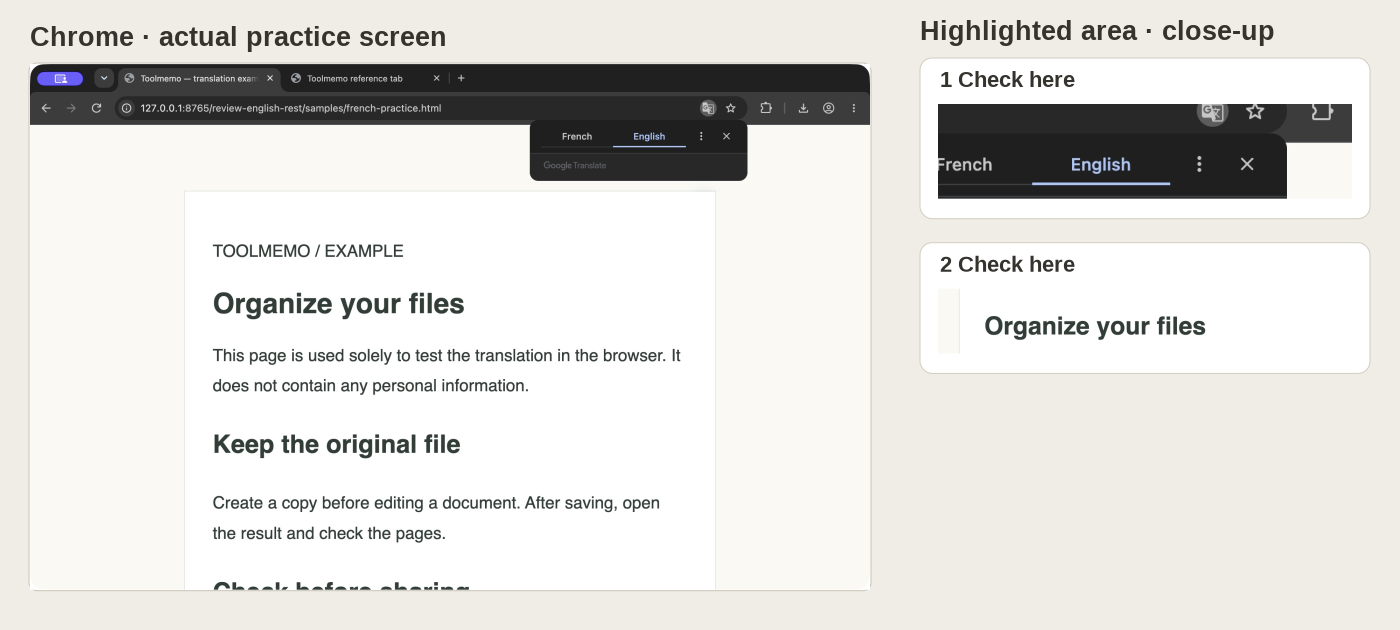
The actual translated heading is Organize your files, with English selected in the language panel.
- 1Check Confirm English in the panel.
- 2Check Compare the translated heading with the French source.
3. Return to the original language
Choose French in the panel to return to the source. The original heading Organisez vos fichiers returns without opening another page. Compare names, numbers and important conditions with the original. After this practice run, the browser’s previous Korean translation target was restored; Always Translate was not enabled.
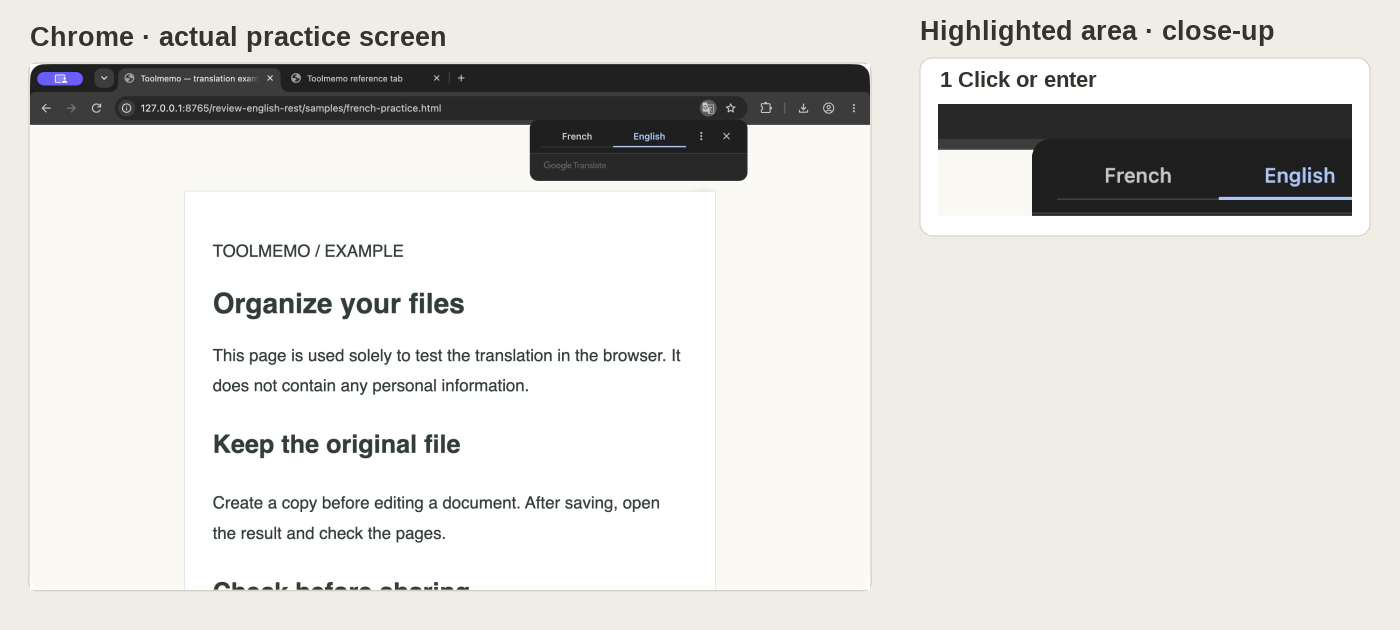
Choose French in this same panel to restore the source. This capture shows the control before that click; the returned French heading was separately verified.
- 1Action Choose the source-language French tab.
Before you share the result
- If the icon is missing, Google also documents translating from a page’s right-click menu. The original test used the address-bar icon; other routes are documented rather than tested here.
- This example covers webpage text. It does not establish that words inside an image, video or separate document will be translated in the same way.
English practice screens were captured on macOS 26.5.2 on 18 October 2026. All documents and images shown are tutorial samples. Results apply to these examples; interface labels can differ by version.