Open Chrome Settings → On startup → Open a specific page or set of pages, then choose Add a new page and enter its address.
1. Choose a specific startup page or set of pages
Open the three-dot menu → Settings → On startup. Select Open a specific page or set of pages. Add a new page appears below it. Use current pages can add the pages already open, so adding one address at a time is clearer when you want precise control.
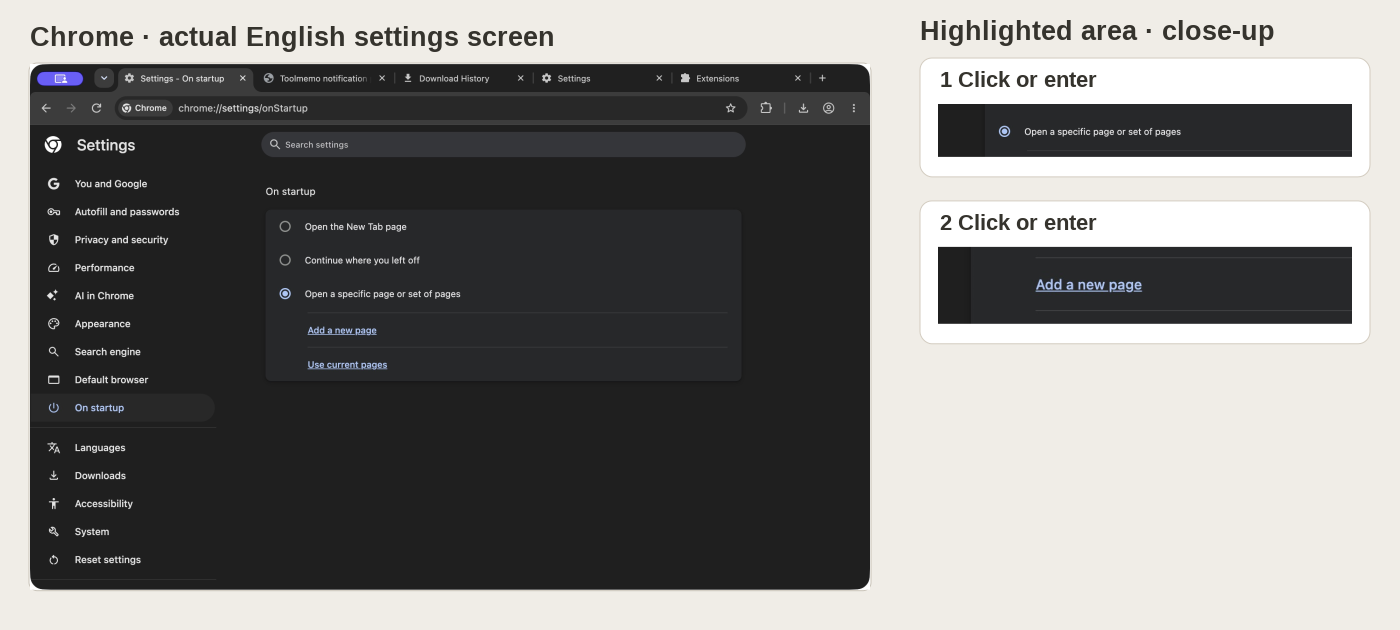
Actual English On startup settings. Open a specific page or set of pages is selected; Add a new page appears below it.
- 1Action Select the specific-page option.
- 2Action Choose Add a new page.
2. Enter the address you want to open
Choose Add a new page and enter a working URL. The English example uses https://mijualgi.com/en/, Toolmemo’s public English home. Use a normal destination that opens without a temporary authentication link.
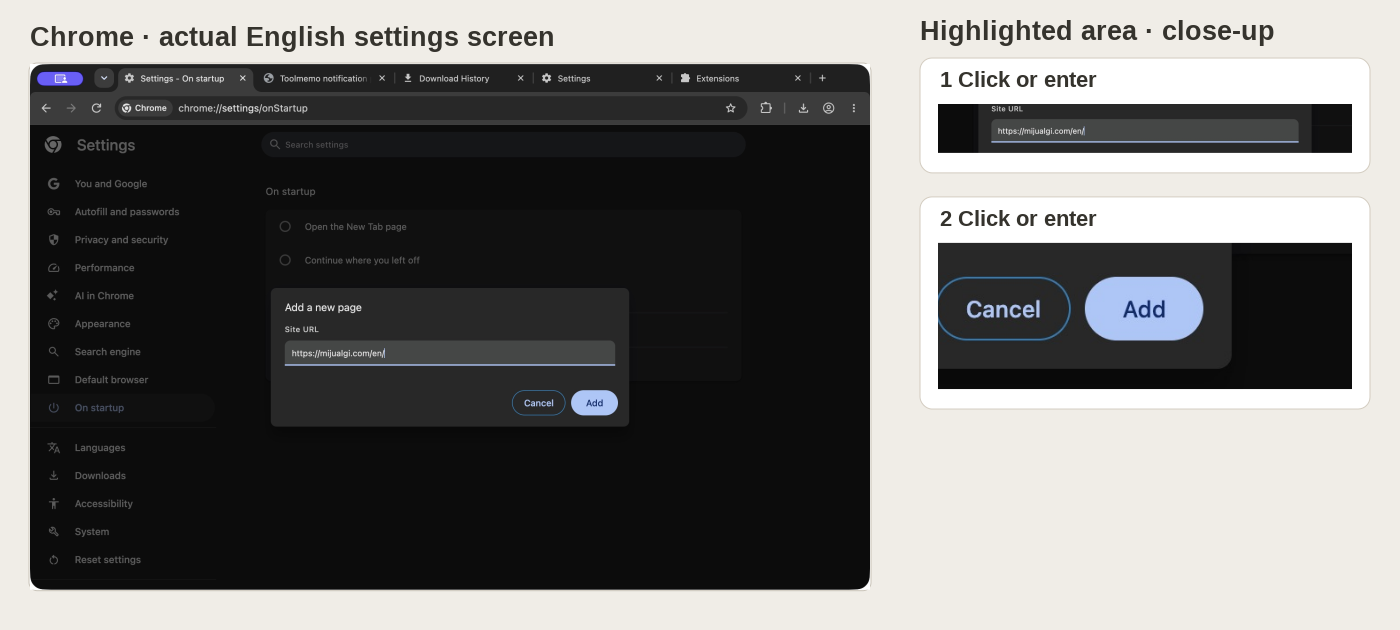
The actual dialog contains the public Toolmemo English home address. This is a practice entry, not a temporary login link.
- 1Action Enter a normal public website address.
- 2Action Choose Add to save the entry.
3. Check the saved entry and its edit menu
Choose Add, then check the title and address in the saved list. Its three-dot menu offers Edit and Remove. Edit changes this entry; Remove removes it from the startup list without changing the website. The practice entry was removed afterward and the original Open the New Tab page choice was restored.
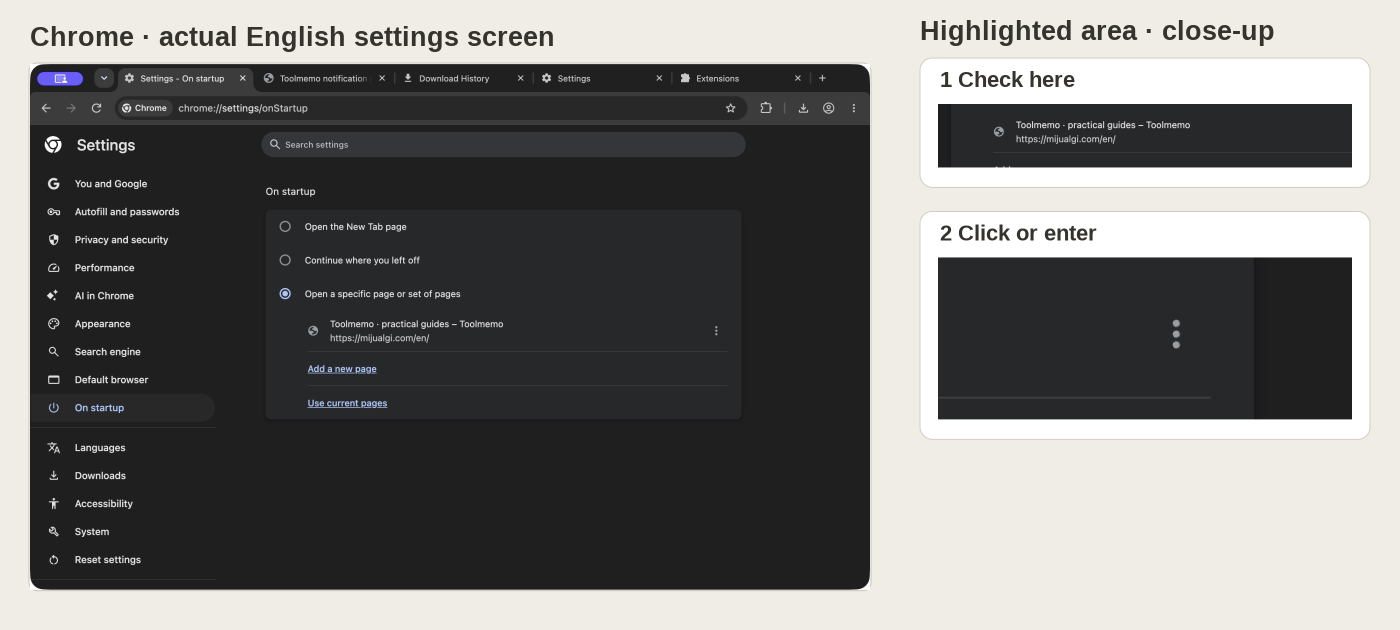
The actual saved entry contains the expected title and https://mijualgi.com/en/. The practice entry was removed afterward and the original new-tab option was restored.
- 1Check Check the saved title and address.
- 2Action Open the entry’s three-dot menu.
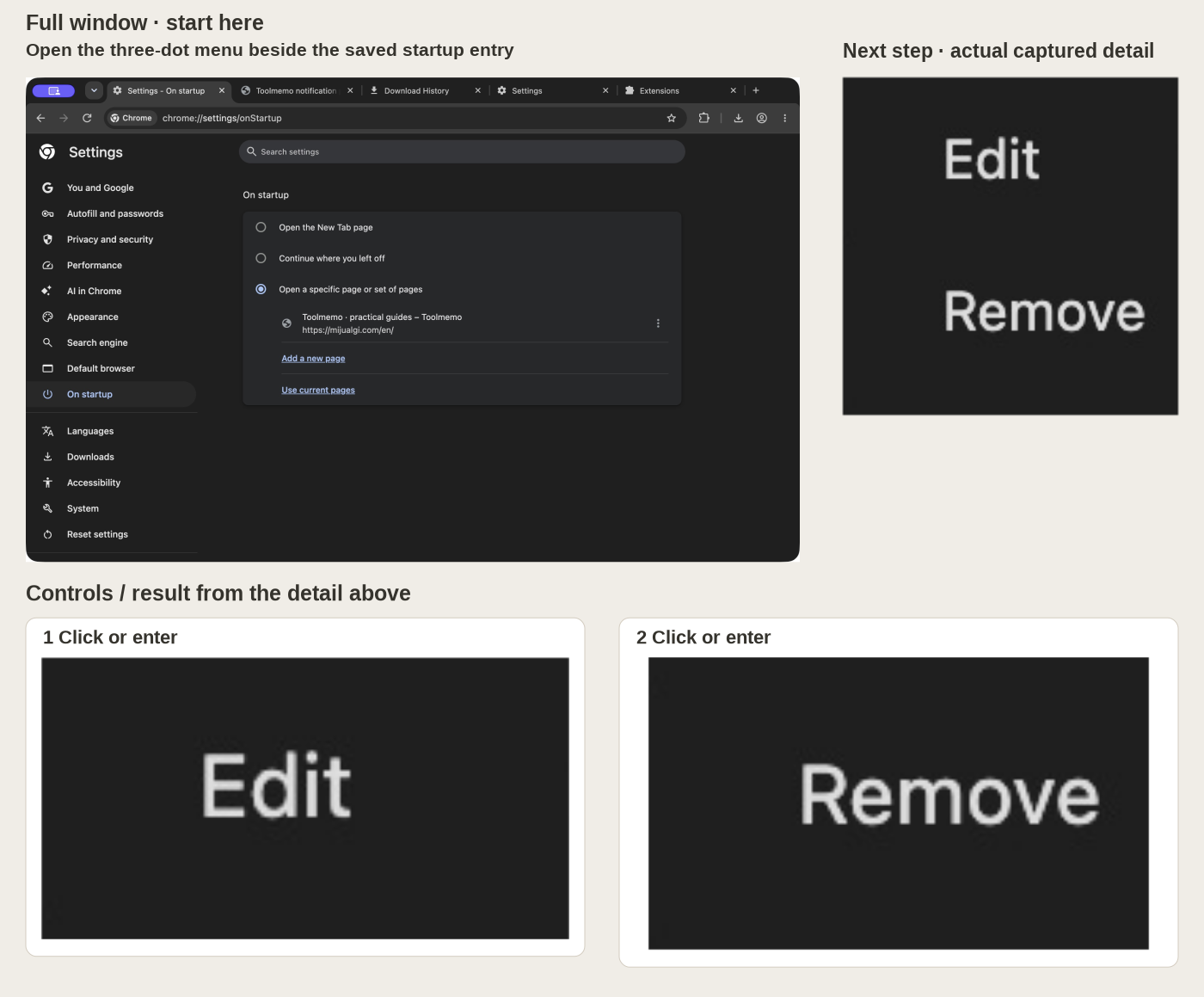
Actual Edit and Remove labels from the open entry menu. This is a real narrow crop that excludes the pointer at the menu’s right edge; the preceding full view locates the menu button. The large view locates the app and workflow. The separate image is a real cropped view from the specified step; it is not pasted into the app window.
- 1Action Edit changes this saved startup address.
- 2Action Remove deletes only this startup-list entry.
Before you share the result
- This test verified the saved entry and its edit menu. Chrome was not restarted while this practice entry was configured; the later language-restoration restart took place after it was removed.
- Startup pages, the Home button and the new-tab page are separate choices. Adding a startup page does not make every new tab open that address.
The public English home entry was added, read in the saved list, and inspected through Edit/Remove on 18 October 2026. It was then removed and the original new-tab choice restored. A full Chrome restart while the practice entry was configured was not tested.