Select the files in Finder, Control-click and choose Compress. Double-click the resulting ZIP to extract it.
1. Select only the files to include
Put the files together and select the ones you want to send. The original example uses three Toolmemo practice images: COVER, CHECKLIST and NOTES. Keep the original JPG files. ZIP packaging does not change their pixel dimensions or photo quality.
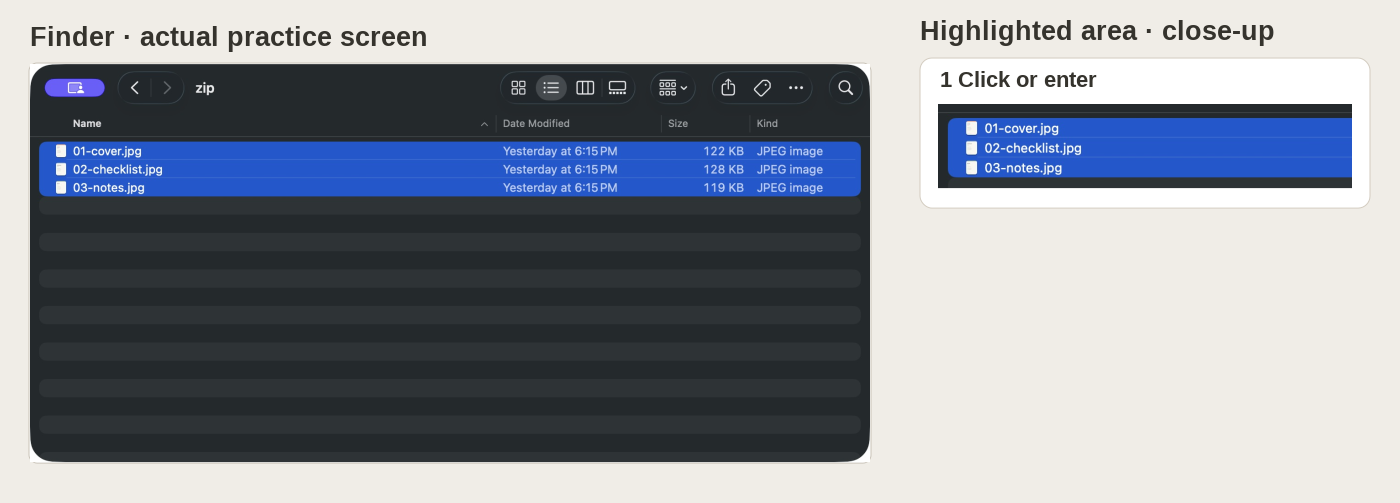
Three source JPGs are selected for packaging. They remain as separate source files.
- 1Action Select the three images to include.
2. Choose Compress in the shortcut menu
Right-click the selection and choose Compress. The menu can include the selected-item count. The archive’s initial name depends on the language and existing files. In this run it was renamed Toolmemo-photos.zip for clarity; that is an example name, not a guaranteed default.
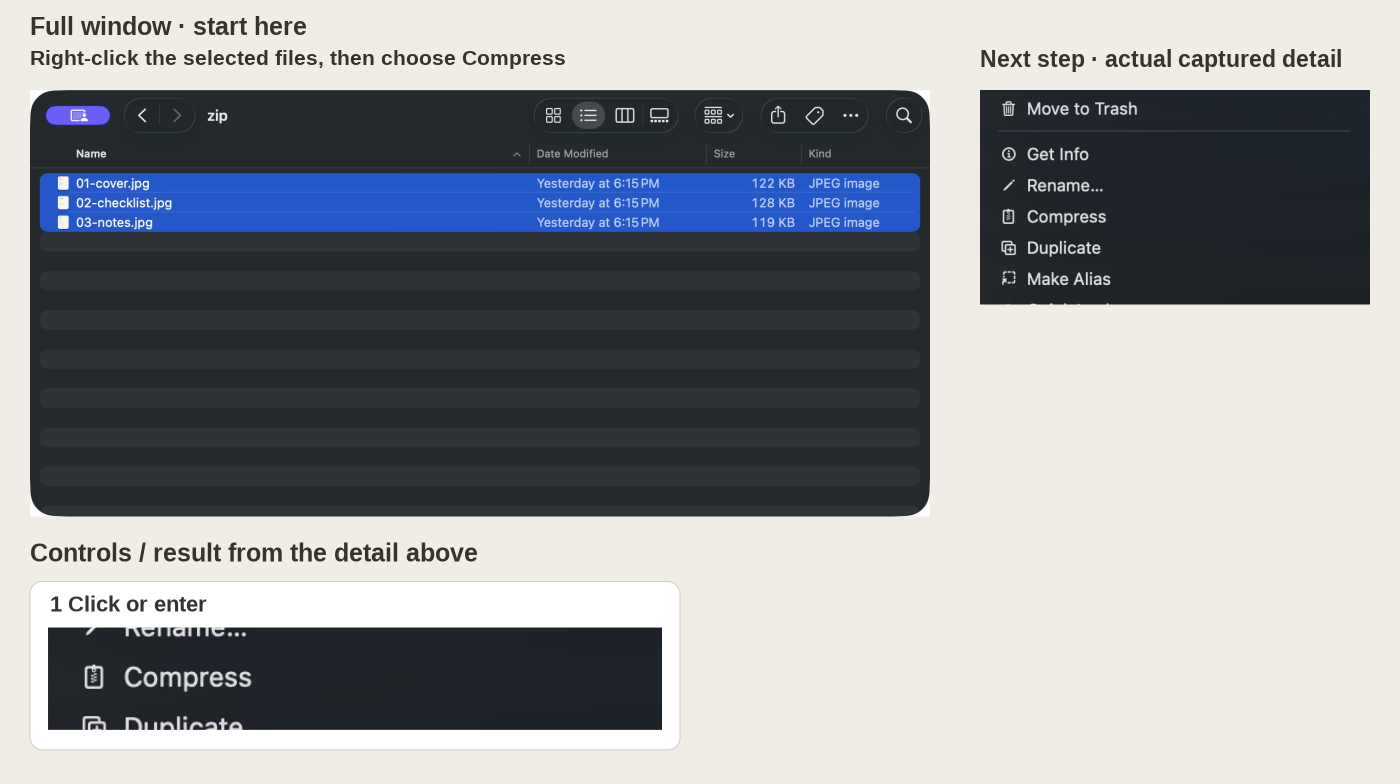
Actual shortcut-menu crop with Compress. The large preceding Finder window locates the selected files; this detail is a separately captured later state. The large view locates the app and workflow. The separate image is a real cropped view from the specified step; it is not pasted into the app window.
- 1Action Choose Compress in the shortcut menu.
3. Extract the ZIP and inspect its contents
Open the ZIP and then its extracted folder. The English run produced a Toolmemo-photos folder containing 01-cover.jpg, 02-checklist.jpg and 03-notes.jpg. A hash comparison confirmed that all three match the source files. The ZIP also contains standard macOS metadata entries; these are separate from the three photos.
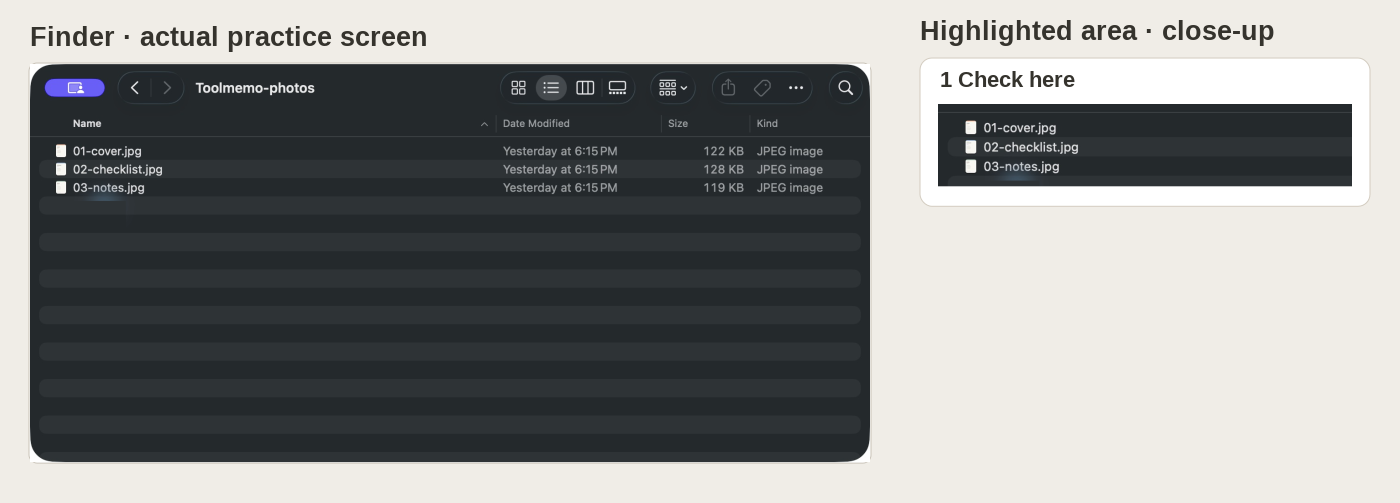
The actual extracted Toolmemo-photos folder contains all three JPGs. Their hashes match the originals.
- 1Check Check the three expected file names.
Before you share the result
- Already-compressed images may barely shrink inside a ZIP. This workflow is useful for packaging several files, not for meeting a particular photo-size limit.
- Compressing one item normally uses that item’s name plus .zip. Multiple items normally use Archive.zip. Keep the originals until you have verified the extracted result.
English practice screens were captured on macOS 26.5.2 on 18 October 2026. All documents and images shown are tutorial samples. Results apply to these examples; interface labels can differ by version.