Open the first PDF in Preview, choose File → Duplicate, and save the copy. Show View → Thumbnails in both PDFs, then copy a page thumbnail from one document and paste it into the other.
This example uses a two-page application and a one-page attachment. The finished file should read APPLICATION → CHECKLIST → ATTACHMENT. These are practice documents with no personal details.
1. Make a working copy and show the thumbnails
Open application-original.pdf in Preview. Choose File → Duplicate, then File → Save and give the copy a new name, such as merged-application.pdf. Work in that copy from this point on. Preview can save edits automatically, so duplicating first matters.
Choose View → Thumbnails from the menu bar at the top of the Mac screen. The sidebar shows the two pages you started with. If the document opens in another app, use Finder’s Open With → Preview.
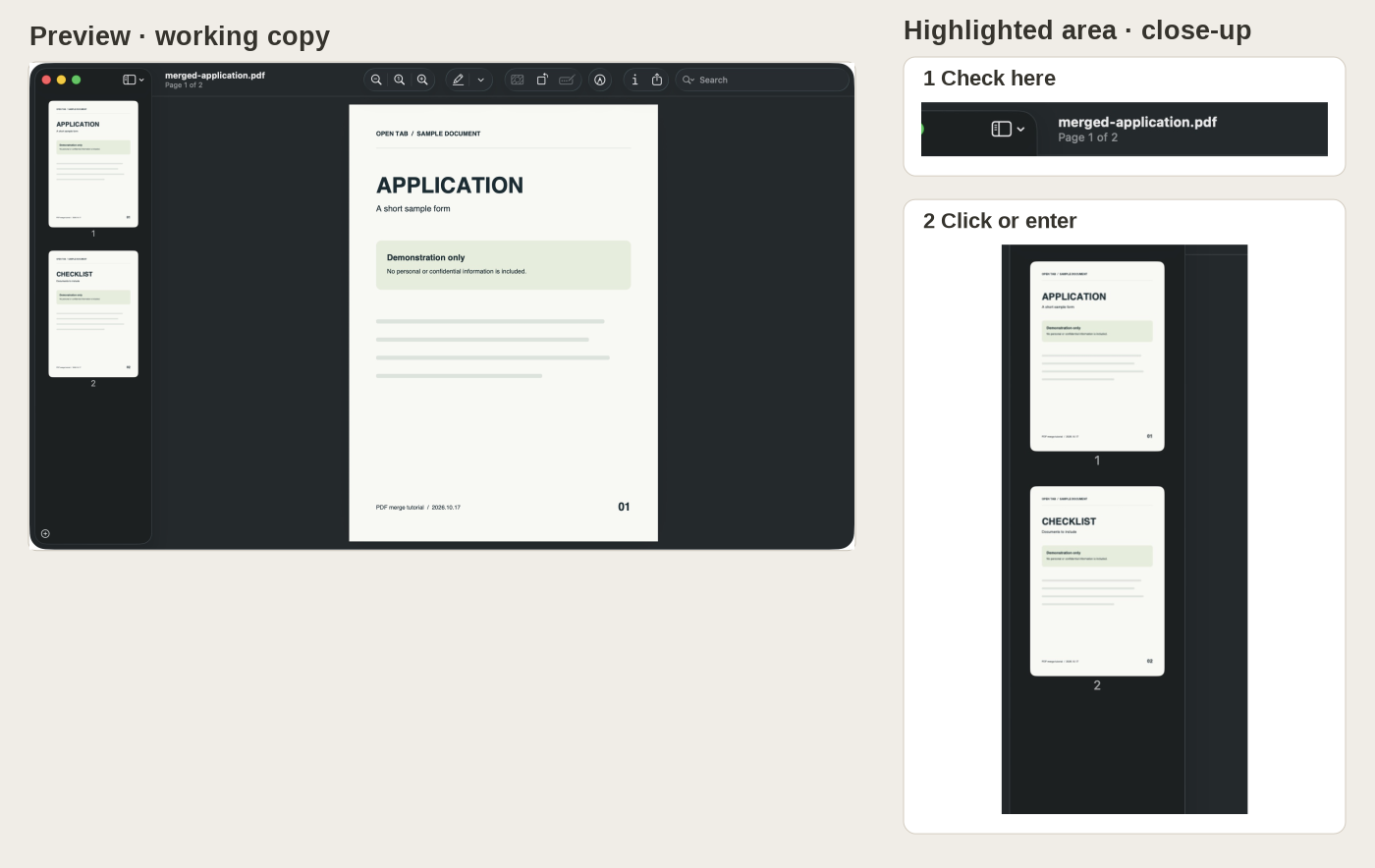
The working copy has two pages. The title is the new file name, and the left sidebar is where you select pages.
- 1Check Confirm that you are editing the working copy.
- 2Action Use the page thumbnails in this sidebar.
2. Copy the attachment page into the working PDF
Open attachment-original.pdf in a second Preview window and show its thumbnails too. Click the page thumbnail in the sidebar, then press ⌘ C. Clicking text on the page instead would copy text, rather than a whole PDF page.
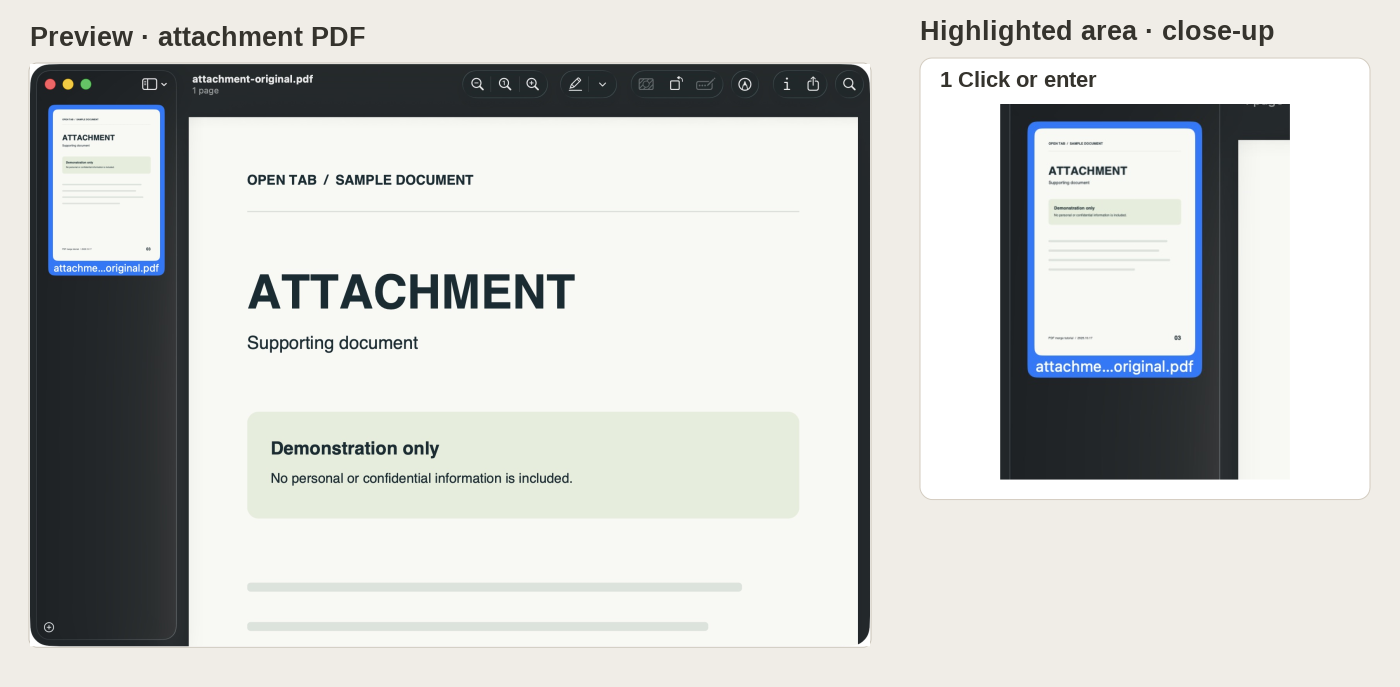
Select the attachment thumbnail, then copy it. This source PDF contains one page.
- 1Action Click the page thumbnail before pressing Command–C.
Return to merged-application.pdf using the Window menu. In this test, clicking the CHECKLIST thumbnail and pressing ⌘ V inserted the copied attachment before that selected page. That gave us three pages, but the order still needed a small fix.
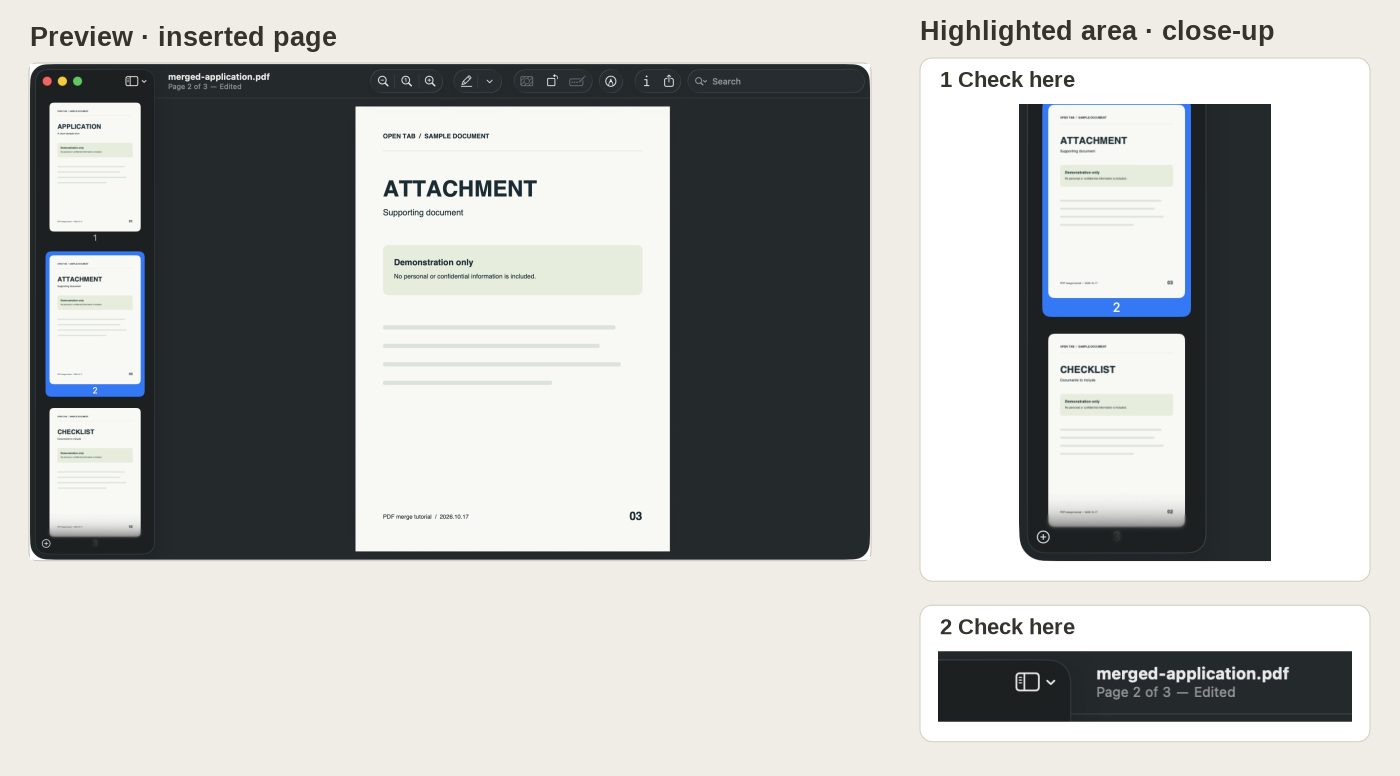
The attachment is now page 2 of 3. The checklist is below it, so the count is right but the order needs correcting.
- 1Check Notice ATTACHMENT before CHECKLIST in the sidebar.
- 2Check The title area now shows a 3-page document.
3. Put the checklist before the attachment, then save
In the working PDF, select the last thumbnail, CHECKLIST, and press ⌘ X. Select the ATTACHMENT thumbnail and press ⌘ V. In this test, Preview pasted the checklist immediately before the attachment. This is the keyboard route used for the screenshots; Apple also documents dragging thumbnails to reorder them.
Choose File → Save or press ⌘ S. Read down the sidebar once more: APPLICATION first, CHECKLIST second, ATTACHMENT last.
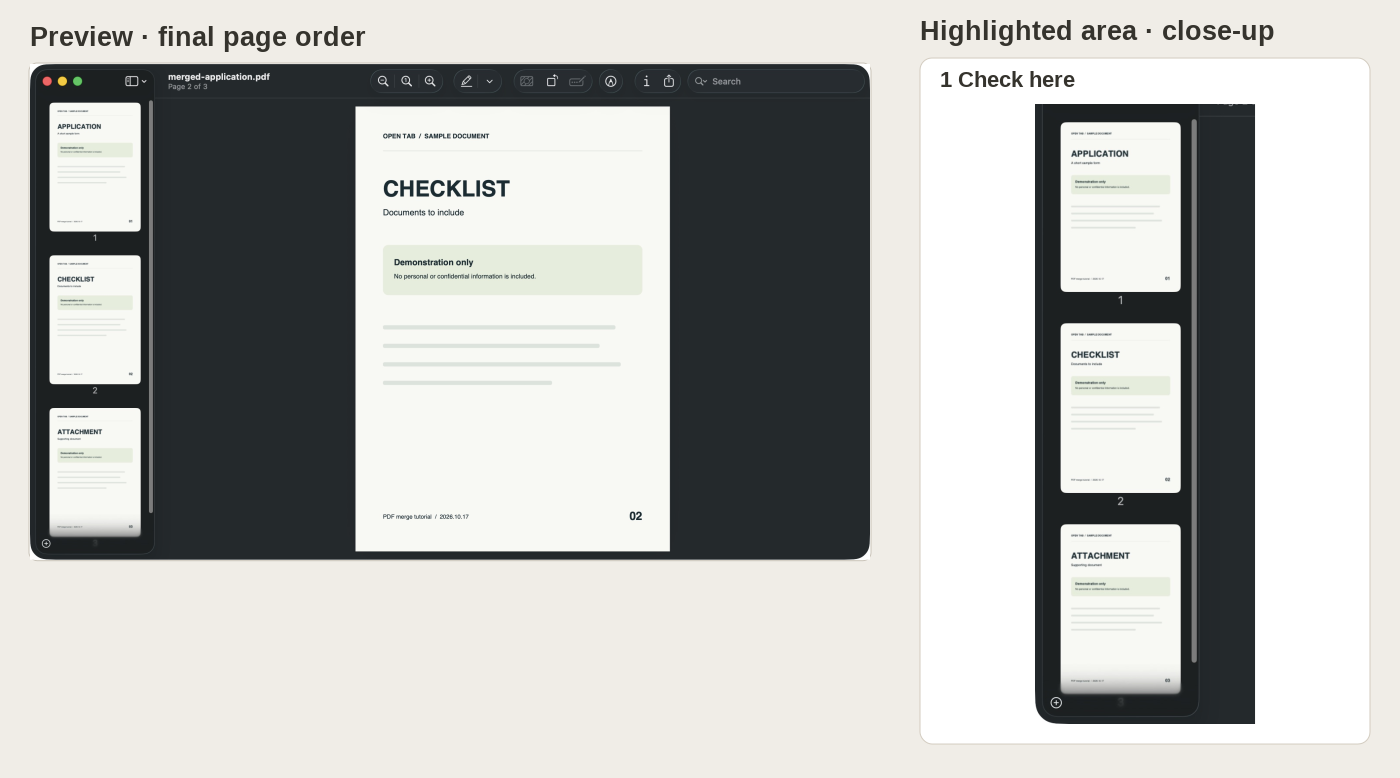
Saved result: APPLICATION, CHECKLIST, ATTACHMENT. The second page is selected here; all three thumbnails are visible.
- 1Check Check the final three-page order from top to bottom.
The saved file contains 3 pages in that order. The two original PDFs still contain 2 pages and 1 page respectively.
Ready to send the combined PDF? You can add a signature in Preview. If the recipient should enter a password before opening it, see how to password-protect a PDF on Mac. Keep the original and check the final saved copy before sharing.
If copying a page does not work
Check that a thumbnail is selected, rather than text in the main page. If a PDF asks for a password or restricts editing, use an authorized editable copy. This method is for combining normal PDFs; it does not remove a document’s protection.
The copy-and-paste sequence and saved page order were tested on 18 October 2026. Apple’s guide describes the alternative drag-and-drop route. Menu placement can differ in other macOS versions.